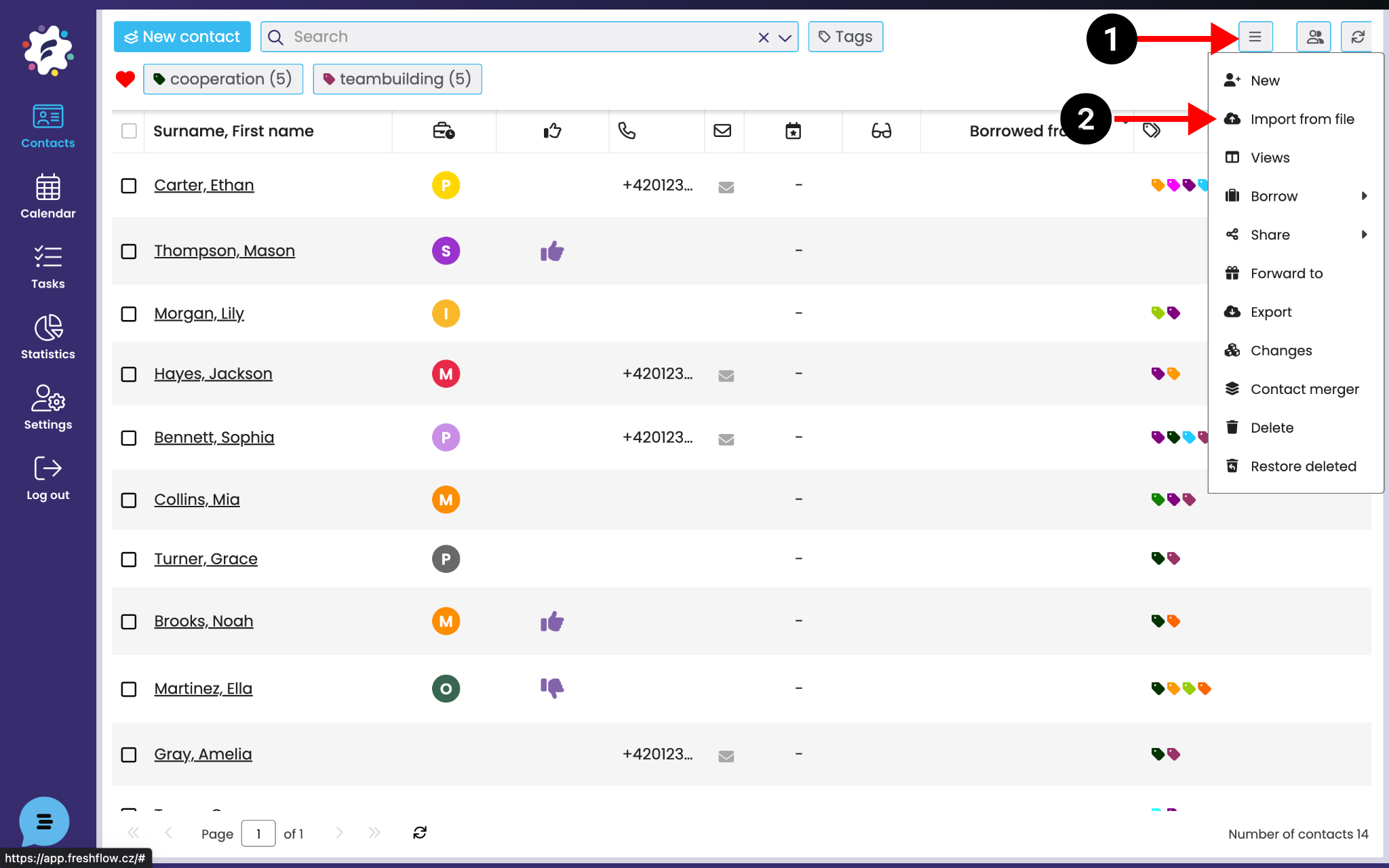
After logging into the system, open the Contacts module and click the more actions button (1) and choose Import from file (2). Then a new window will pop up so you can pick a file from your PC. Choose an xlsx or csv file with contacts.
In this step, you’ll match columns from your table to those in FreshFlow.
You can also assign an existing tag to your contacts or create a totally new one by clicking the + icon. Later you’ll be able to easily filter the imported contacts under these tags.
If your database has any duplicates, those contacts won’t get imported into FreshFlow. But if you want to import even with duplicates, you can enable that option.
Confirm by clicking Import. The contacts will be added to FreshFlow and you’ll then be able to search for them in the database.

Now you can check the imported contacts directly in the system. In the Contacts module, your imported contacts will show up.
The system also shows you the total number of your contacts (1) and the total number of pages to display contacts (2).
If you import a lot of contacts, loading and displaying them in the database might take a while. The contacts will show up in the database gradually, not all at once.


