In your database, you can choose which data you want to keep track of, or rather, what you want to see in the overview. For example, whether it’s important for you to see the town where the client lives, or if you want to display their occupation.
Just scroll over and click the gear icon in the top right corner, where a drop-down with all the possible fields you can display will show up.
You can also choose to display the data you’ve set as your own custom fields.
Once created, your custom fields show up in the overview automatically, unless you set it up otherwise when making them.
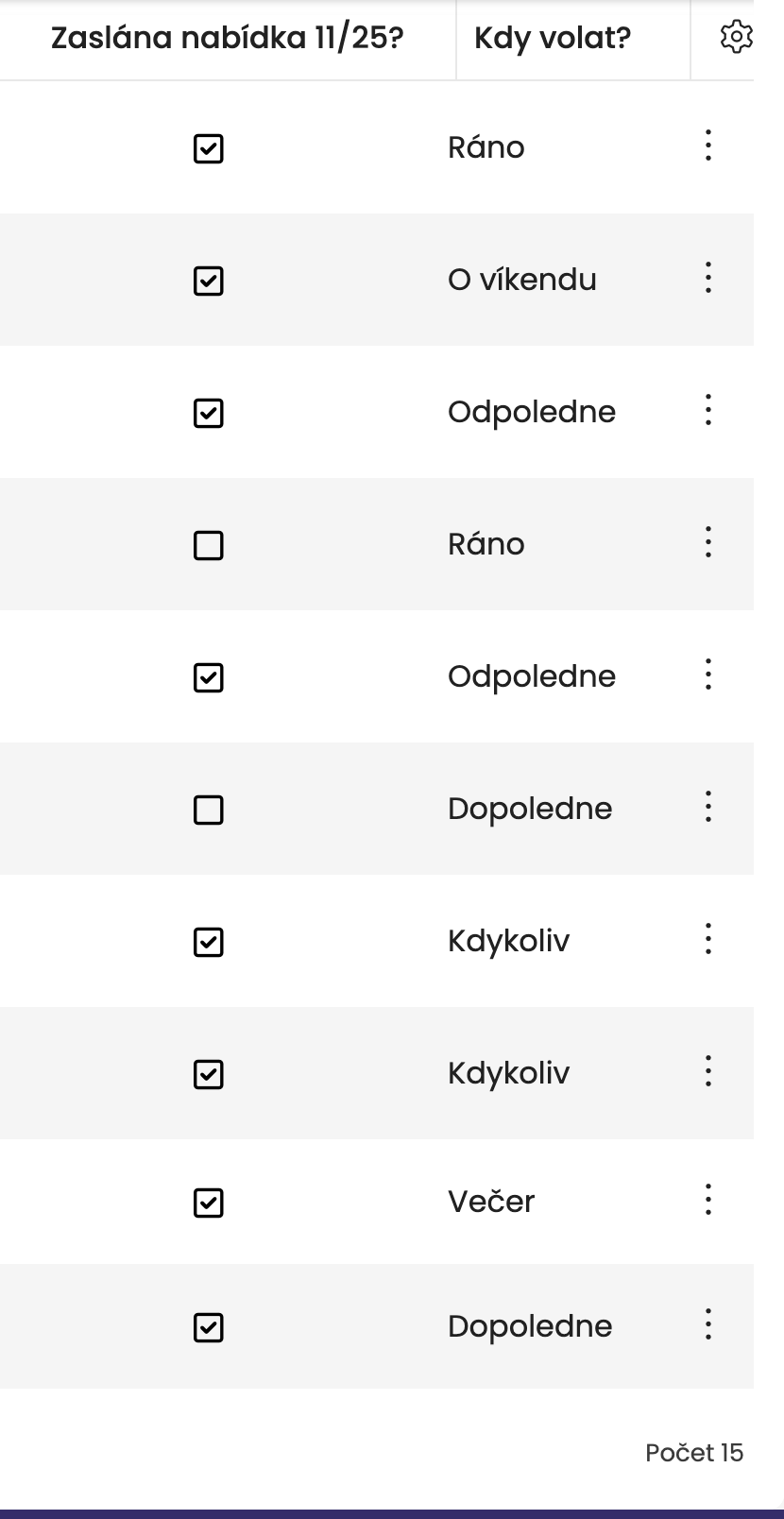
You can set up the order of data columns just how you need. Want to see the phone number right after the name? Simply “grab” the column name and drag it to the spot where you want it.
With adjustment, you can also set the width of columns. Just click on the edge of the column title, hold it, and drag to make it bigger (expand), or drag it the other way to make it smaller (shrink).
