To configure the external calendar import, click on the External Calendars tab in the right-hand menu of the Calendar module.

After clicking, the active Imported External Calendars tab will open, where you will find an overview of currently configured imported calendars and the Import External Calendar button.
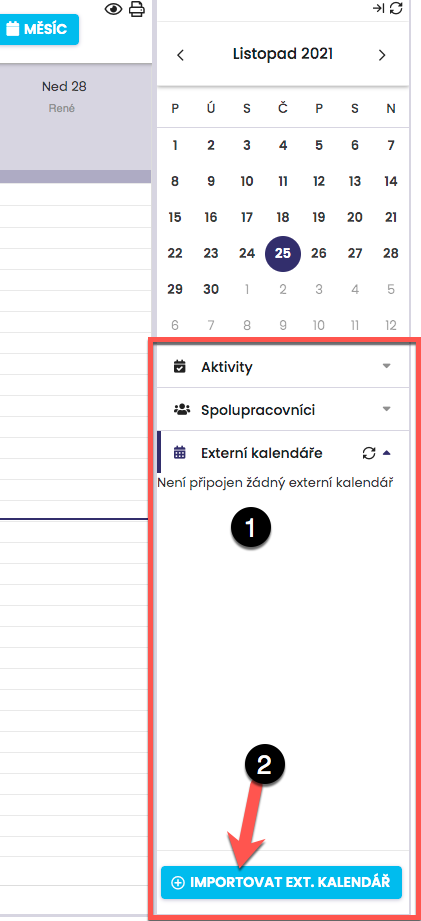
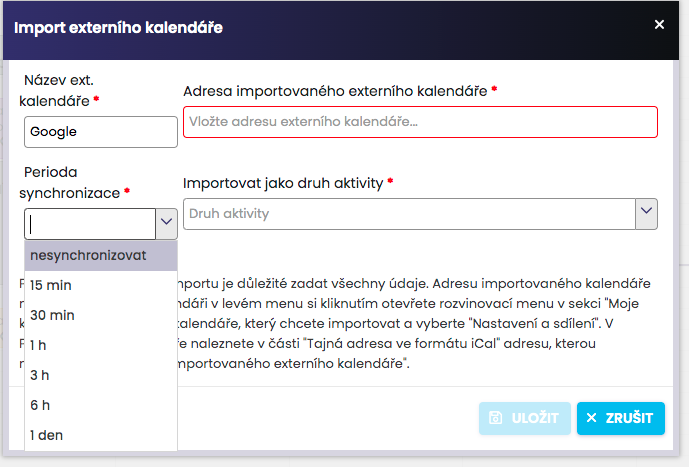
By clicking this button, you will open the dialog window for External Calendar Import Settings.
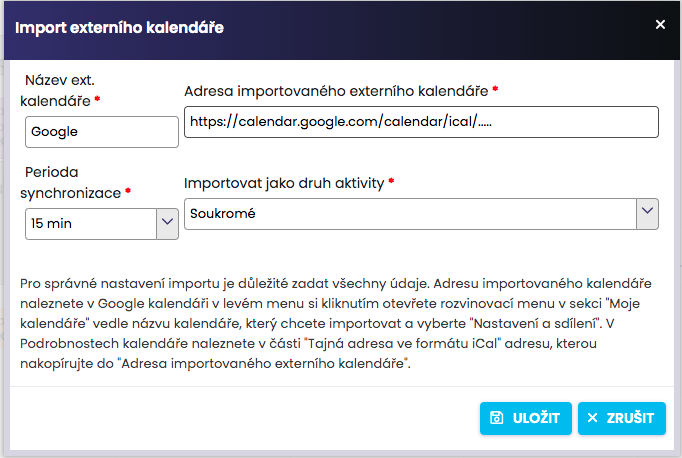
In the dialog window for External Calendar Import Settings, enter the External Calendar Name and the Imported Calendar Address, which you obtain in your external calendar, for example in Google (described in detail below).
Next, set the Synchronization Period, i.e. the interval specifying how often the automatic update of data from the imported calendar should occur*.
The last parameter is the selection of whether the imported activities from the external calendar should be displayed in the system calendar as the activity type Private or Other.
After configuring the settings, click Save.
* Note: Automatic synchronization will occur at the set interval after entering a new event in the connected external calendar.
You can find the address of the imported calendar in Google Calendar. In the left menu, click to open the drop-down menu under My calendars and select Settings.
In the settings, click to select the calendar you wish to import.
In Calendar details, in the Private address section (1), click ICAL (2) to display the address of your calendar. Copy this into the Address of the imported external calendar.
If you have correctly filled in the form for configuring the import of the external calendar, click Save to apply the settings. An initial automatic import of data from Google Calendar into your calendar in the system will be performed, and the calendars will be saved.
The imported calendar will be saved under the tab Imported external calendars and the calendar data will be displayed in your system calendar. By hovering the cursor over this calendar in the Imported calendars tab, you will obtain information about the last completed synchronization and the configured synchronization interval.
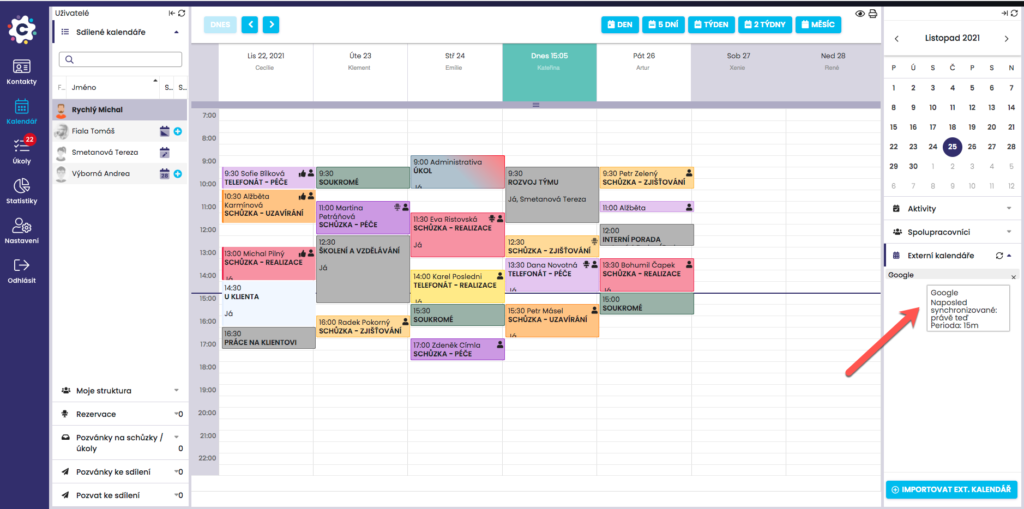
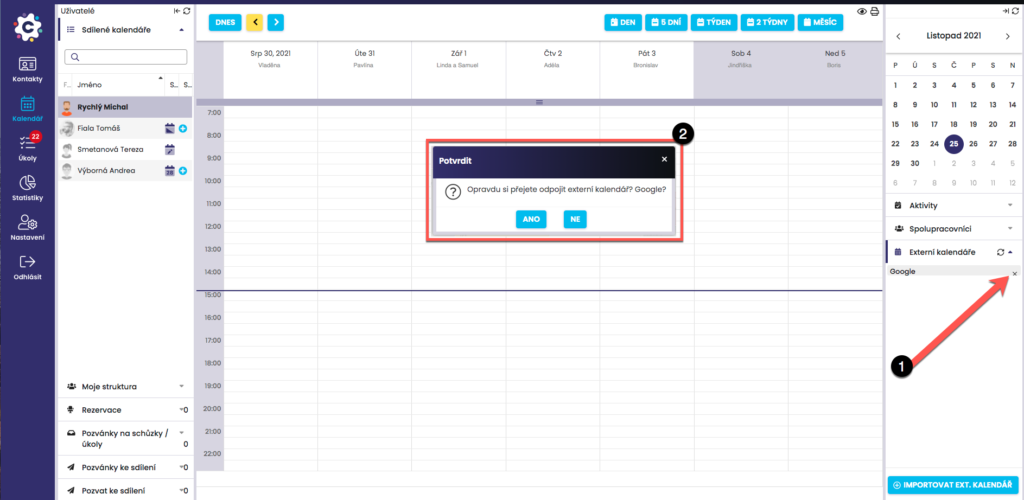
To cancel / delete the import of an external calendar, click the cross icon (1) next to the imported calendar. A dialog window will open and the system will ask you to confirm whether you really wish to cancel the import and then whether you wish to keep the imported data or delete it as well.