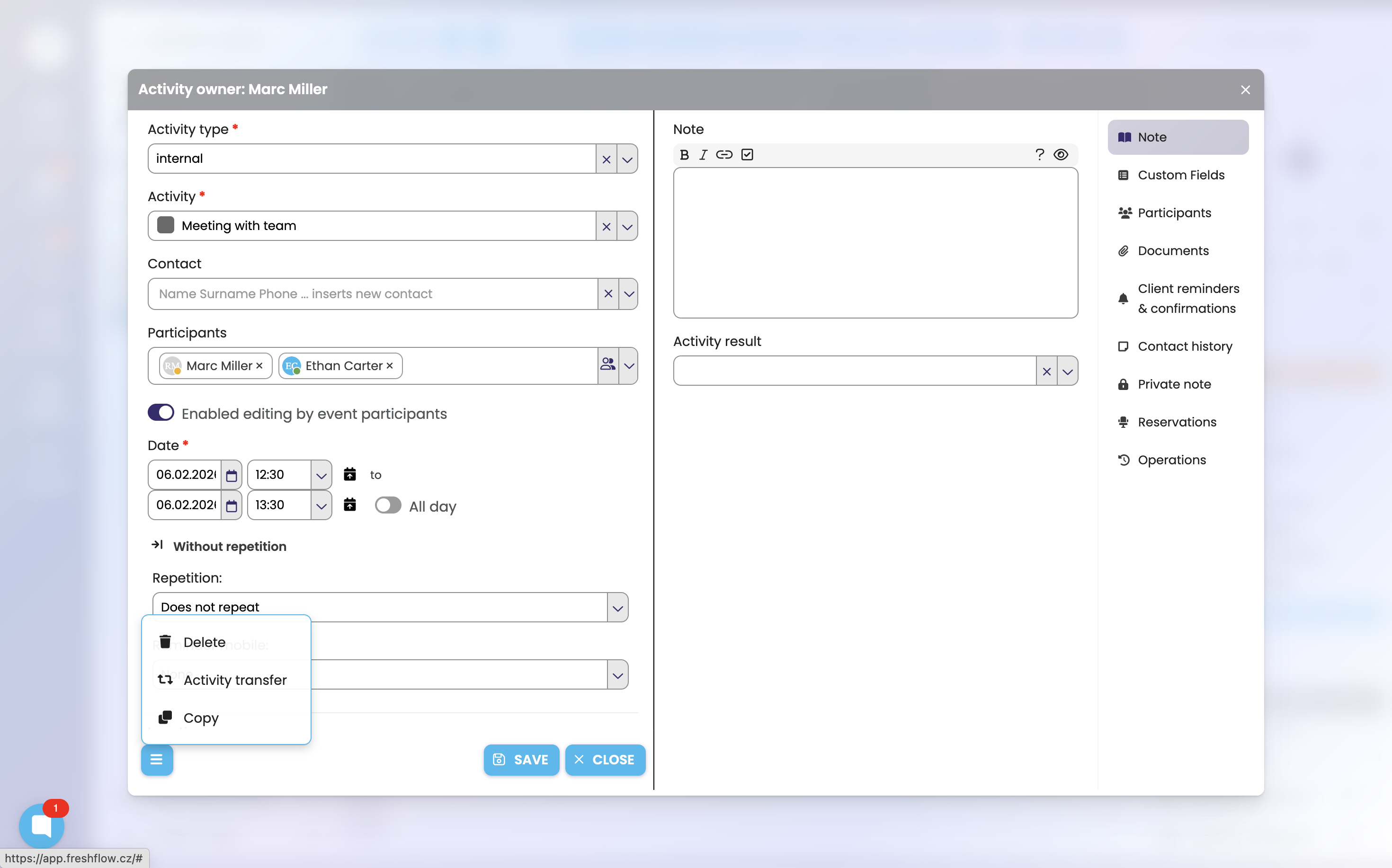
Firstly, enter the Activity. To send an invitation, it is necessary to enter the name or names in Participants. You can add group as well.
You can add Notes, Location, and other information. Click Save. The invited person will receive an invitation and it will appear in the Meeting invitations tab.
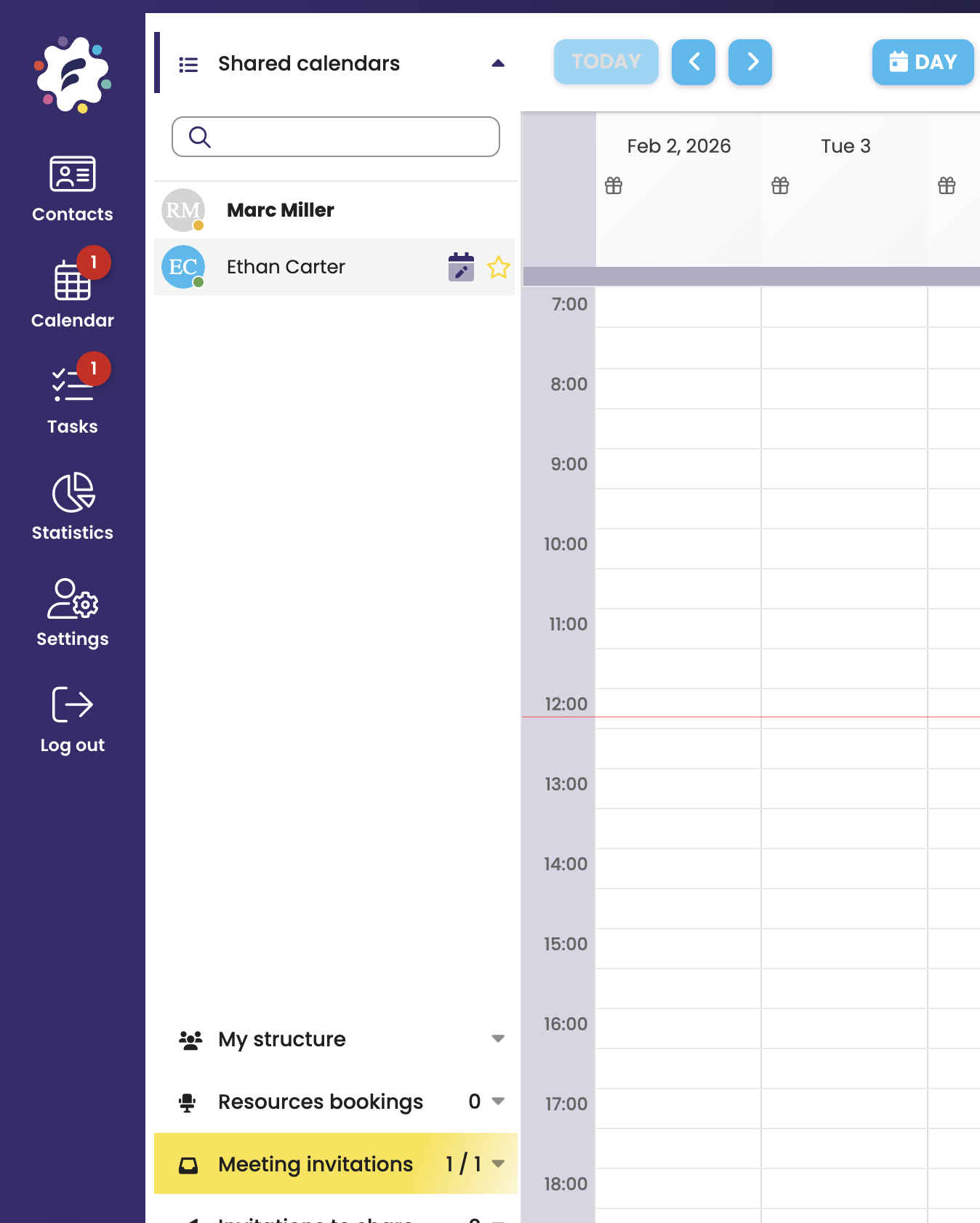
A received meeting invitation is displayed in the Meeting invitations tab. If this tab contains a new invitation, it changes its color (to yellow) to draw attention to the invitation waiting to be processed.
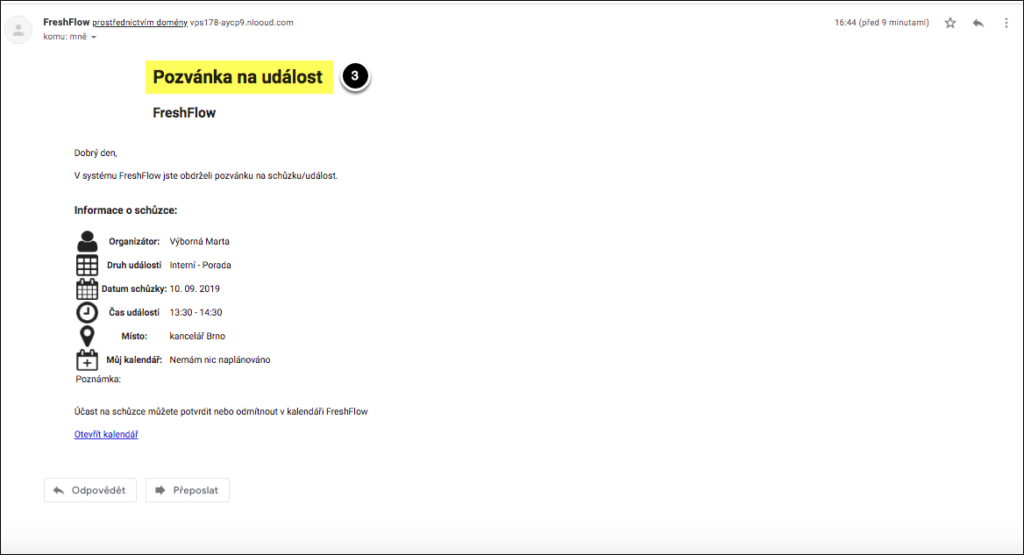
Click the tab to open it and detailed information about the invitation will be displayed. The system will also automatically send a meeting invitation to the participants, including information to their email.
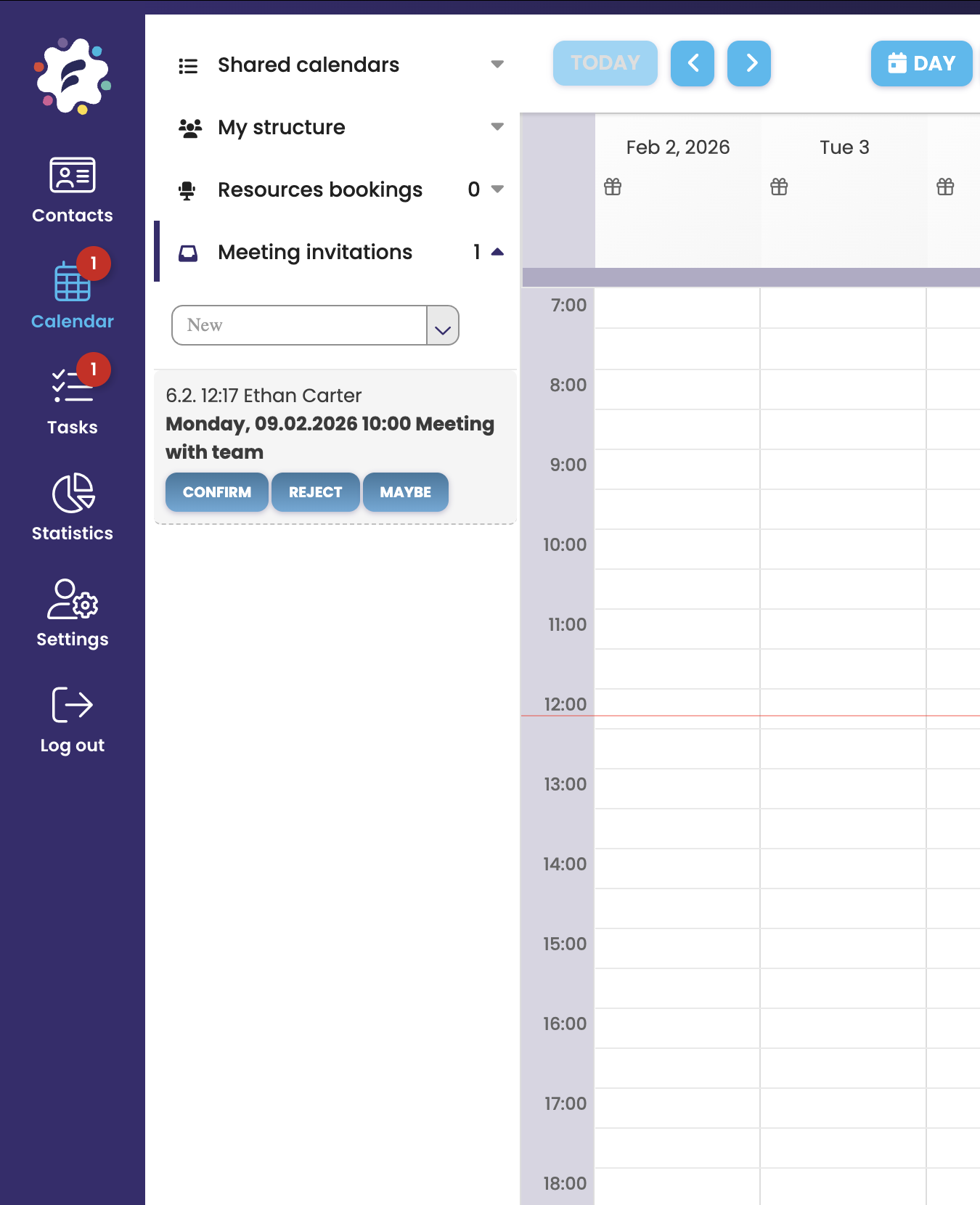
The invitation can be accepted by clicking Confirm, or alternatively rejected. If the event is scheduled sufficiently in advance (more than one day), the “Maybe” option will also be offered.
If you decline participation, you will be prompted to enter a reason for the rejection.
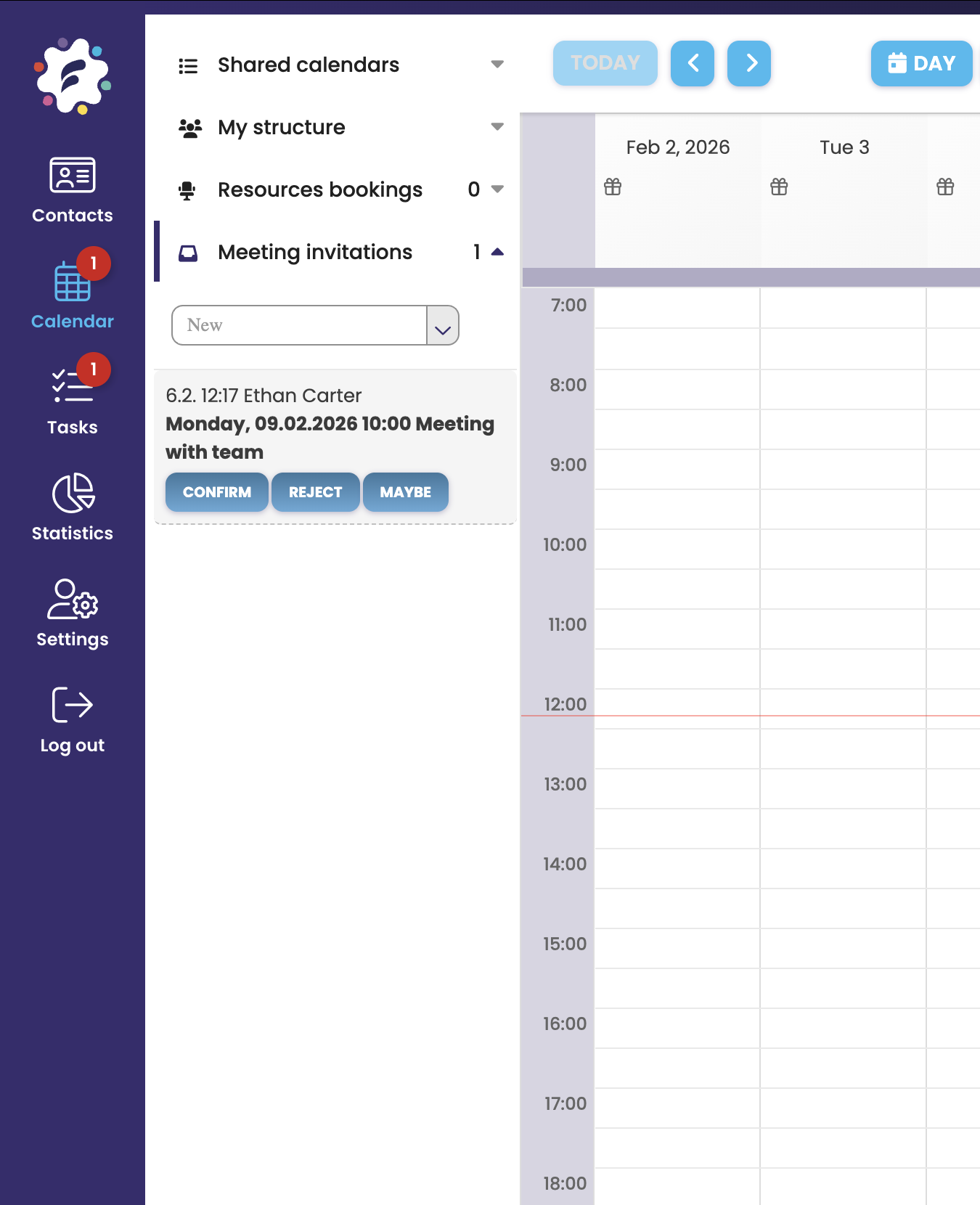
Once you accept/decline the invitation, the creator of the invitation (i.e. the meeting organizer) will receive in Meeting Invitations either a confirmation of acceptance of the invitation or a rejection with the specified reason.
To subsequently decline participation in a meeting, you need to open the relevant Activity in your calendar and click on the group icon next to Participants or, in the right-hand column, on Participants: confirmation / rejection
Then simply click on Decline, enter the Reason for refusal, and the creator of this meeting (i.e. the organizer) will receive a notification of the cancellation of your participation in this meeting. The meeting will then no longer be displayed in your calendar. It will remain in the organizer’s calendar.
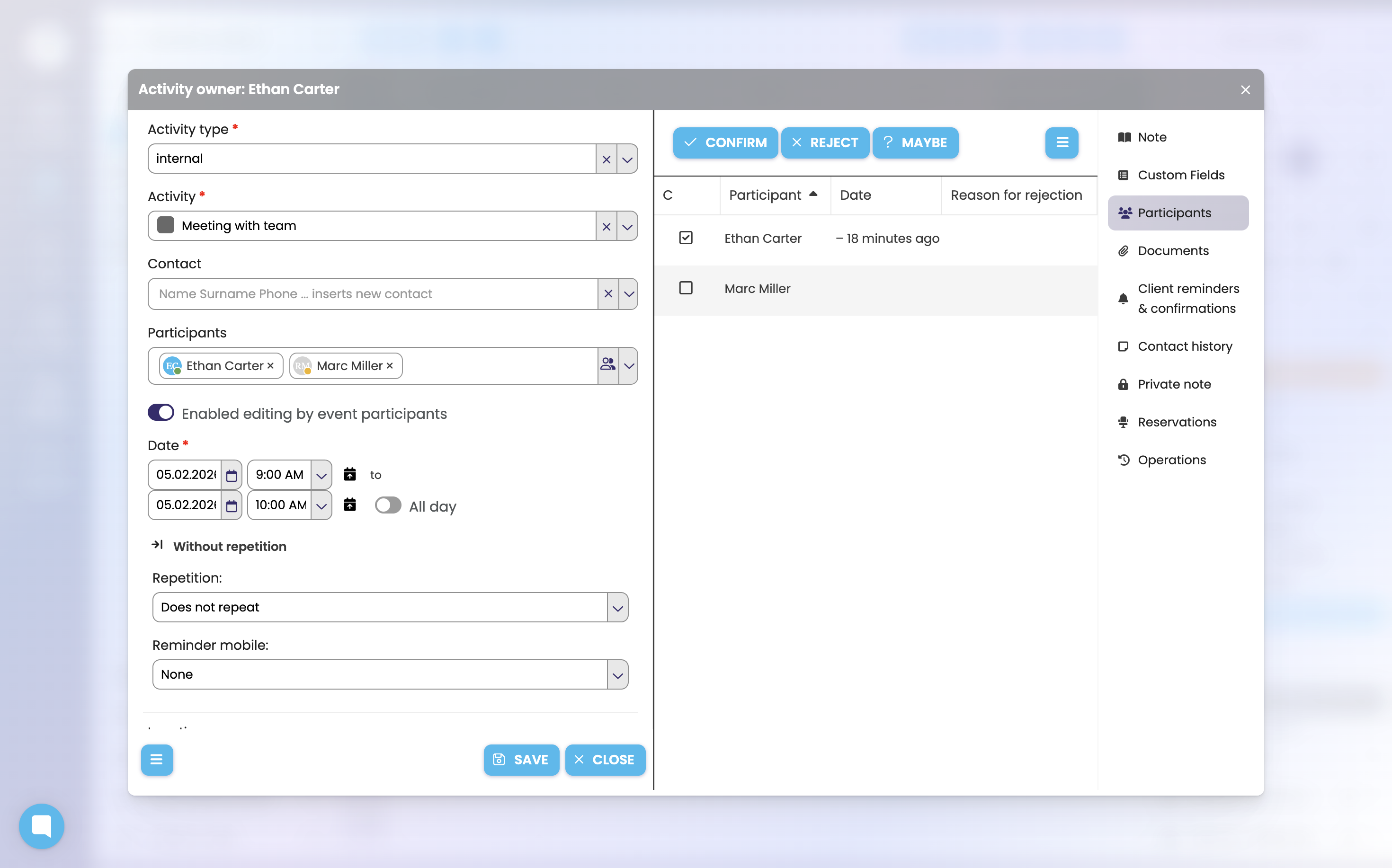
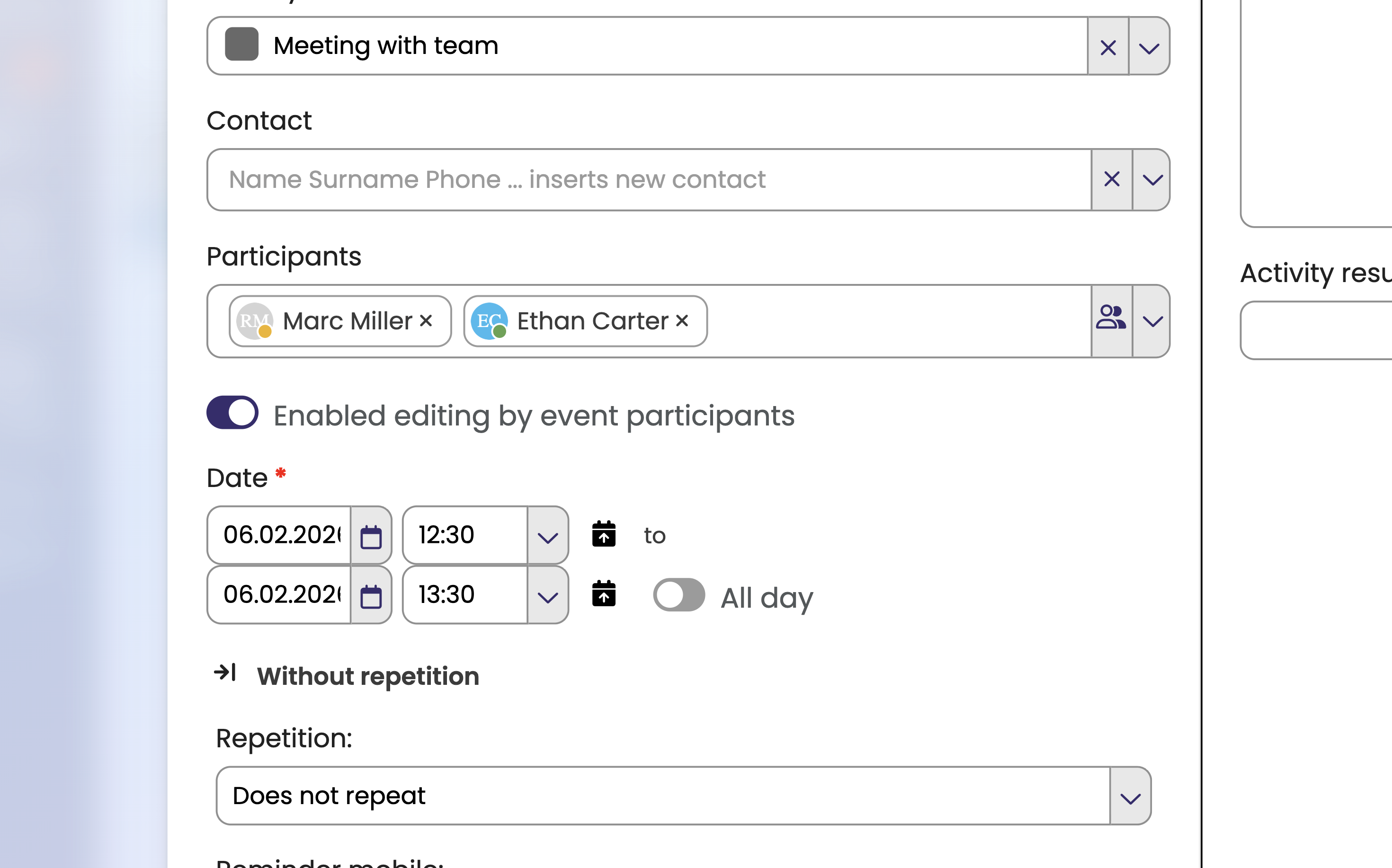
You can allow colleagues to edit the activity by ticking the box Allow invited participants to edit the activity. This way, you can actively work within the team with the submitted dates, for example by changing the venue, adding a note, or even changing the date. All changes made are updated online for all participants.
The meeting can be deleted by the organizer in the activity details by clicking on the icon at the bottom left and “Delete”.