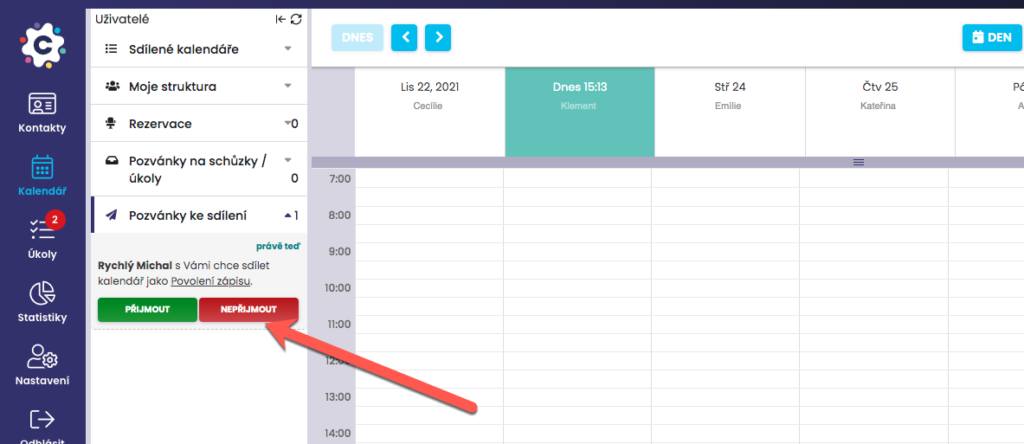
Information that you have received an Invitation to share a calendar with your colleague can be found in the calendar module on the Invitations to share tab. In the Invitation, it is described in detail who is sending you the Invitation to share and how they want to share calendar with you.
Specifically, how you will see their calendar and a proposal for how you can share your calendar with the given colleague. By default, the same level of sharing of your calendar is set as the level at which the given person wants to share their calendar with you.
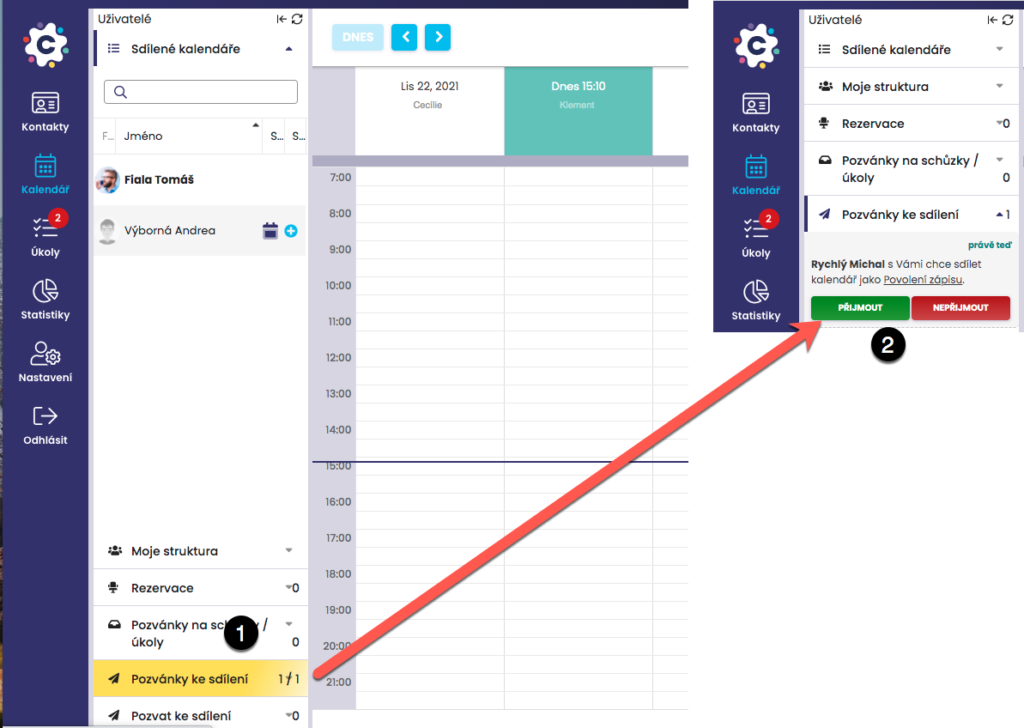
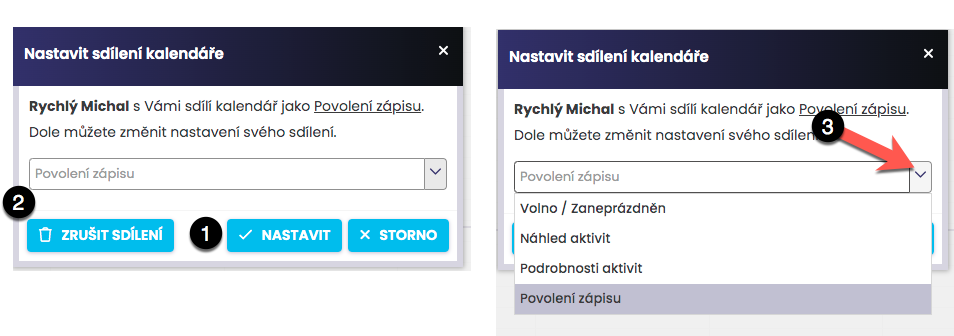
If you agree with the type of mutual calendar sharing settings, click the Set button to confirm. This will configure and activate mutual sharing.
If you do not agree with the proposed mutual calendar sharing, you can completely reject the mutual sharing by clicking the Cancel sharing button.
It is also possible to set a different level of sharing of your calendar, for example the Activity preview type, and click Set to confirm. In this case, you will see your colleague’s calendar as Free/Busy and they will see your calendar as an Activity preview.
You can decline the sharing invitation directly from the Sharing invitations tab by clicking DO NOT ACCEPT. By declining the invitation, mutual sharing will not be activated, therefore you will not see the calendar of the person who sent you the invitation, and they will not see your calendar either.