Adding a new event (activity) to the Calendar is easy. Click with the mouse on the day and time for which you want to schedule the new event.
1) You can fill in the type of activity, or it will be filled in automatically if you first specify a particular activity.
2) In the Activity menu, select a specific activity (phone call, meeting, etc.).
3) Contact: Here you can assign an existing contact to the activity or enter a new contact, for whom this activity will then be recorded in the history together with others. For certain types of activities, this field does not appear.
4) By adding participants in the Participants field, you can invite colleagues to take part in the activity.
5) By ticking the field, you allow invited participants to edit the activity, enabling them to modify the activity details.
6) Repetition: Here you can set the recurrence of the given activity.
7) In the Meeting location field, you can enter a note about where the activity will take place. If you enter a valid address, it will also be displayed on the map after clicking the icon.
8) If the activity has already taken place, select the corresponding result in this menu.
Data marked with a red asterisk are mandatory. Until they are completed, it is not possible to save the activity.

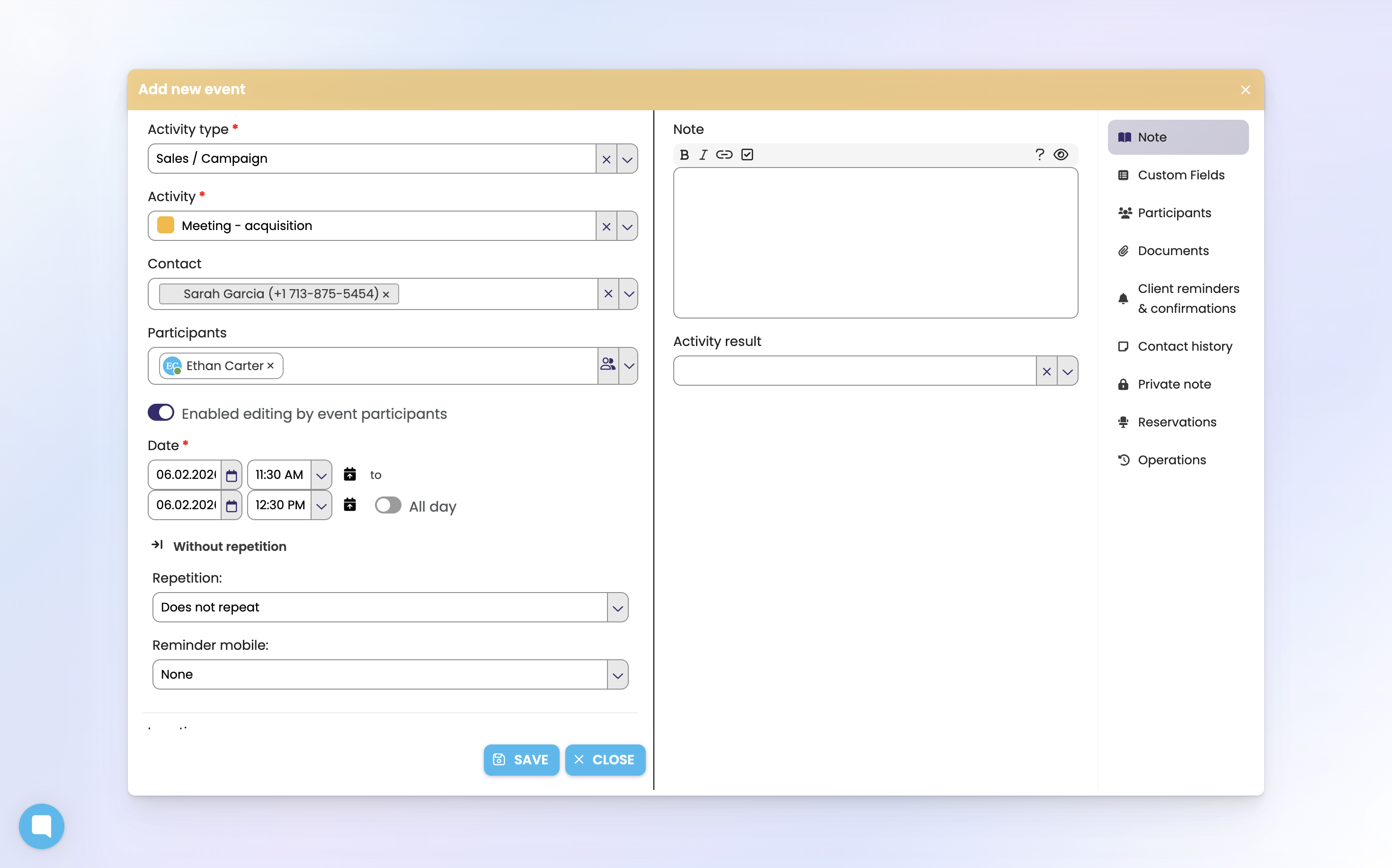
You can then set additional values via the menu on the right:
1) Note – here you can add any information related to the activity, which will also be visible to all participants.
2) Custom fields
2) Participants confirmed / declined – displays a list of people invited to the event and their responses
3) Documents – you can add a document to the activity or contact.
4) Reminders and confirmations - you can set when your client should get reminder or confirmation of the meeting
5) Contact history – you can display the history of activities/tasks that you have recorded for the contact, including notes
6) Private note – only you will be able to see this note.
7) Room and resource reservations – here you can request a reservation of a room / resource (e.g. projector) for your activity.
8) Operations with the activity – history of edits of the given activity, you will see who edited the activity, when, and how.
You can also add a new event in the Contacts module. After clicking the selected contact, the contact details will be displayed. On the Activities tab, click New activity button; a dialog window for adding an event will open. The procedure for entering an event is then the same as when entering it in the Calendar module.
You can also enter events in the synchronized calendar on your mobile phone / tablet.
