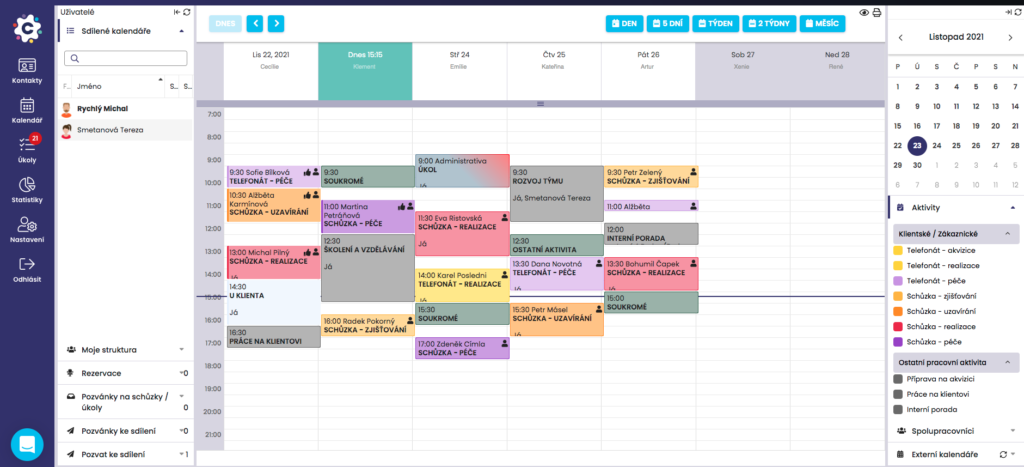
This is the original calendar from your perspective, or in this case from Mr. Ethan Carter perspective, who will send the Invitation to share the calendar.

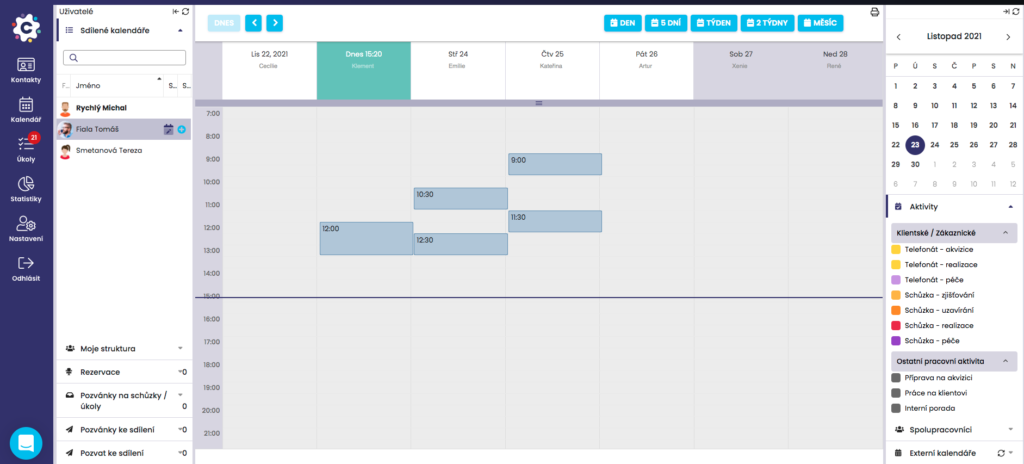
After confirming mutual sharing of the calendar of the Free/Busy type, the person to whom you have granted sharing permission, respectively to whom you have sent the Invitation to share, will see your calendar only in the version shown in the image, i.e. the dark grey fields indicate when you have an activity in the calendar (Busy).
Activities are not distinguished by color, nor are the descriptions of individual activities displayed. In this type of view, scheduled calls and tasks are also not displayed.
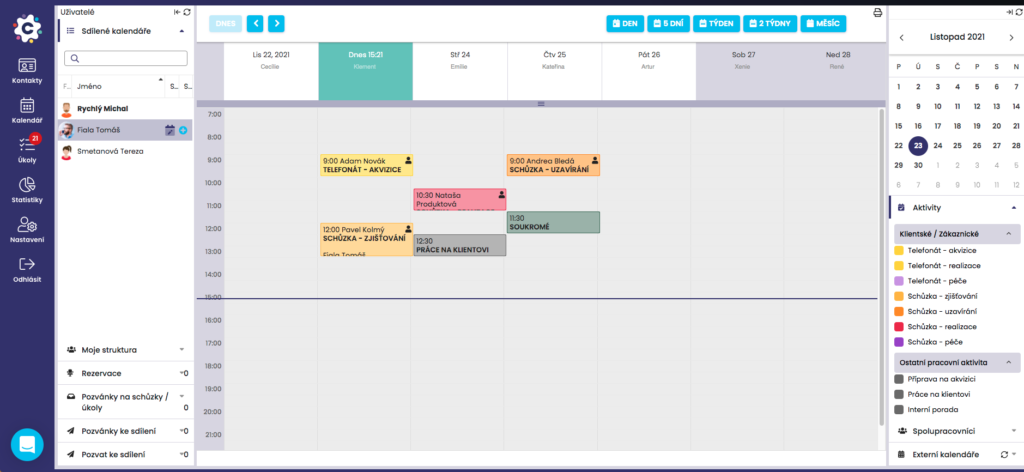
When the calendar sharing type Activity Overview is set, the visibility of your calendar for the given person is displayed as in the image, where the activities in the diary are color‑coded according to the type of activities and the description of individual activities is visible.
However, the activities cannot be clicked to view additional details for the given activity.
Calendar sharing of the Activity Details type enables the visibility of your calendar to the person who has received this permission from you. If individual activities are color‑coded, the description of the activities is visible and it is also possible to click on the activities to view the details of the given activity.
However, the activity details cannot be edited in any way; this is a read‑only view so that it is not possible to change or move activities.
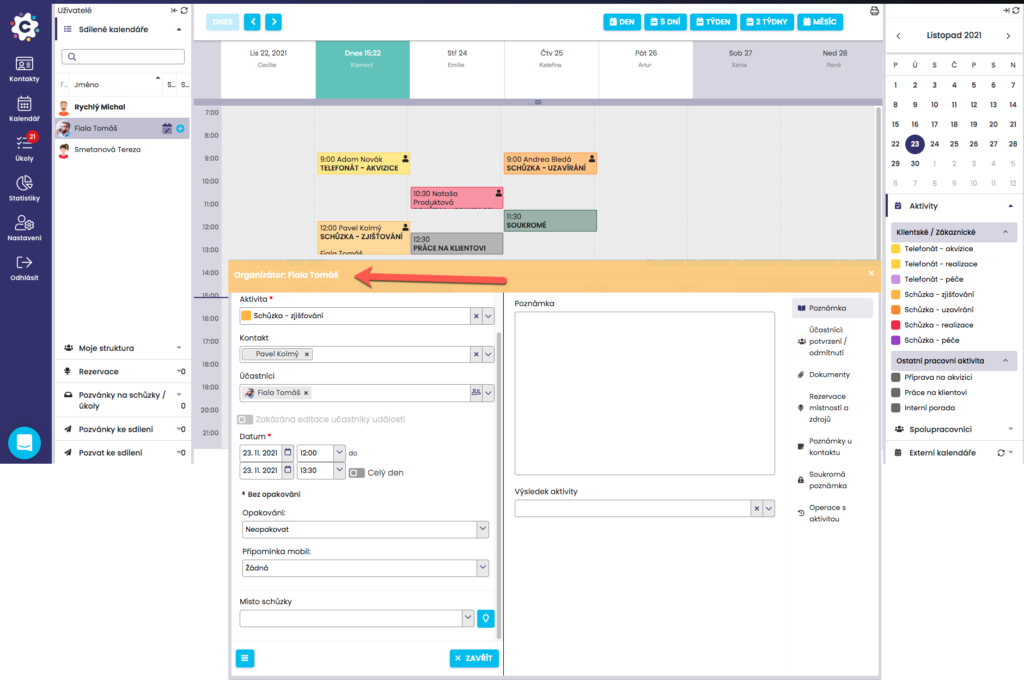
The calendar visibility is the same as with the Activity Details level, with the difference that it is possible to enter a new activity into a colleague’s calendar and edit already created ones.
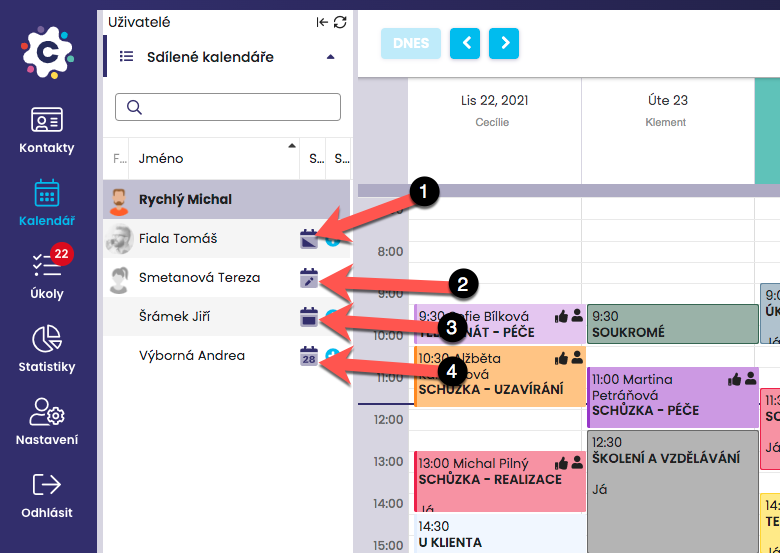
On the Shared Calendars tab, the names of the people with whom you have mutual calendar sharing set up are displayed. The icon next to the name indicates how the given person sees your calendar.
Icons indicating sharing of your calendar:
sharing type Free / Busy (Laura Davis)
sharing type Write Permission (Marc Stone)
sharing type Activity Preview (Marc Miller)
sharing type Activity Details (David Smith)
By clicking on a person’s name in the Shared Calendars list, the calendar of the given person will be displayed to you in the configured sharing type.
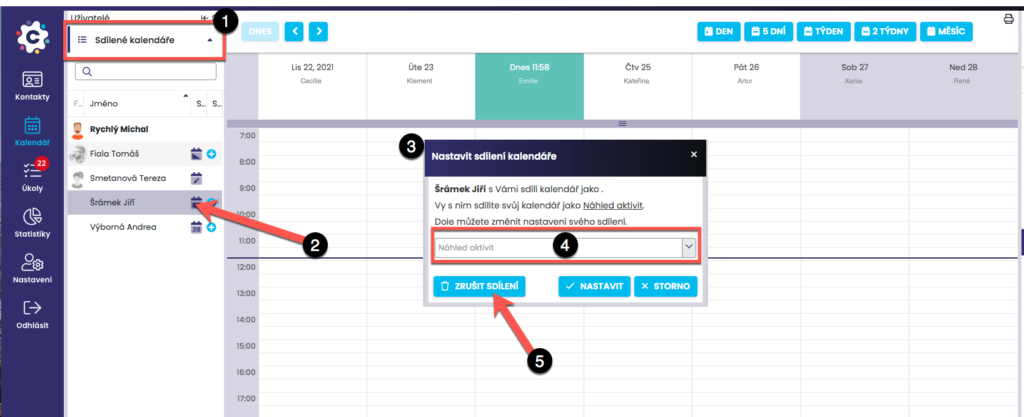
You can edit or completely cancel mutual calendar sharing at any time. In the Shared calendars tab, select the person whose sharing you want to edit or cancel.
Then click the icon next to the name to open a dialog window, where you can perform the editing of the sharing.
You can change the type of Calendar sharing with the given person, that is, how they will see your calendar, or cancel the sharing entirely by clicking Cancel sharing.
When sharing is cancelled, it is cancelled mutually, meaning that you will no longer see the person’s calendar and they will no longer see your calendar.