In the Settings module, go to the Calendar section and select Custom Activity Name Settings.
You'll see the module for setting up custom activity names and their results (called Config).
Clicking the name of the activity/type of activity/result lets you edit their names
Double-clicking the colored icon lets you change its color
Clicking the “+” lets you add a new activity/type of activity/result
By clicking on the “empty square” you can remove the original activity/type of activity/result
First, you'll get to the activity types. You can freely edit the existing ones, add new ones, or delete the current ones.
The rules mentioned above apply here.
Some people like to divide their activities into internal, client ones. Others may prefer business, internal, and recruiting... The choice is totally up to you.


Depending on the type of activity, you'll see specific activities to edit in the next steps.
First, you'll see any new types of activities you’ll need to create activities and their results for.
The rules are still the same. However, you now also have activity results here, which you can add or edit using the same rules, but instead of choosing colors, you double-click to pick whether the result is positive, negative, or still unclear.
In the next steps, you'll be editing activities that were already defined in activity types you didn't create (so for example, you'll be editing activities and results for activity types you only edited in step two).
Example: type Client (edited in step 2)
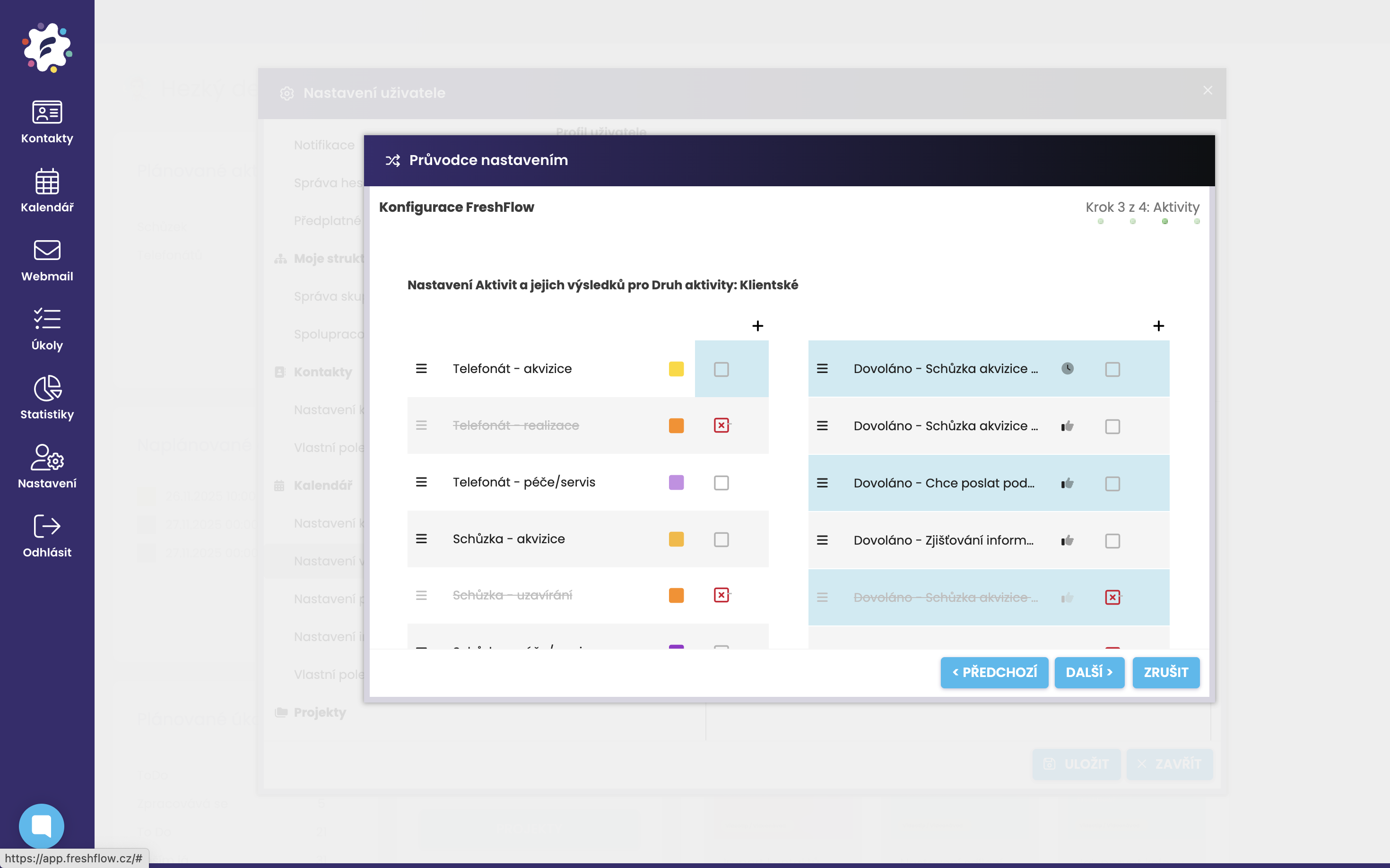
For the types Task and Other, only change the names of the results if needed—not the names of activities.
If you've gotten all the way through all the activity types, you can save.
New activity names and results will automatically show up in the calendar. We recommend giving everything a quick check to make sure it's all good.
