If you usually take part in some activities with colleagues, it can be time-consuming and unnecessary to add several names to each activity.
That’s why in FreshFlow you can create a group of people who regularly join shared activities, and then add the whole group to an activity with one click. The activity will then show up for everyone in the calendar so they can see it.
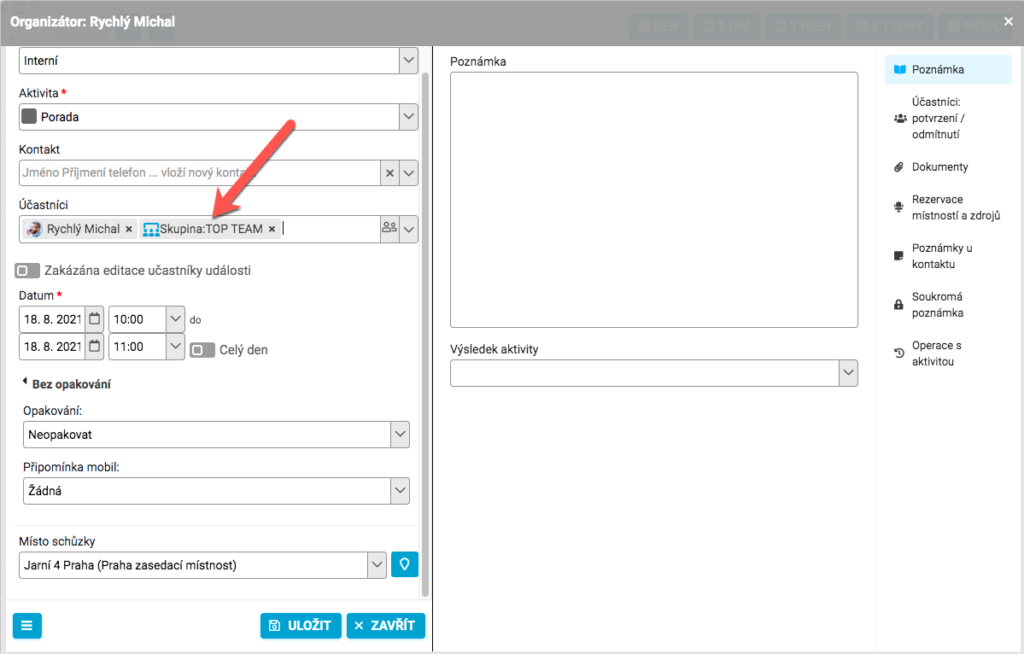
Example: The group TOP-TEAM is used when creating a New event, and you’ve assigned that defined group of people as participants.

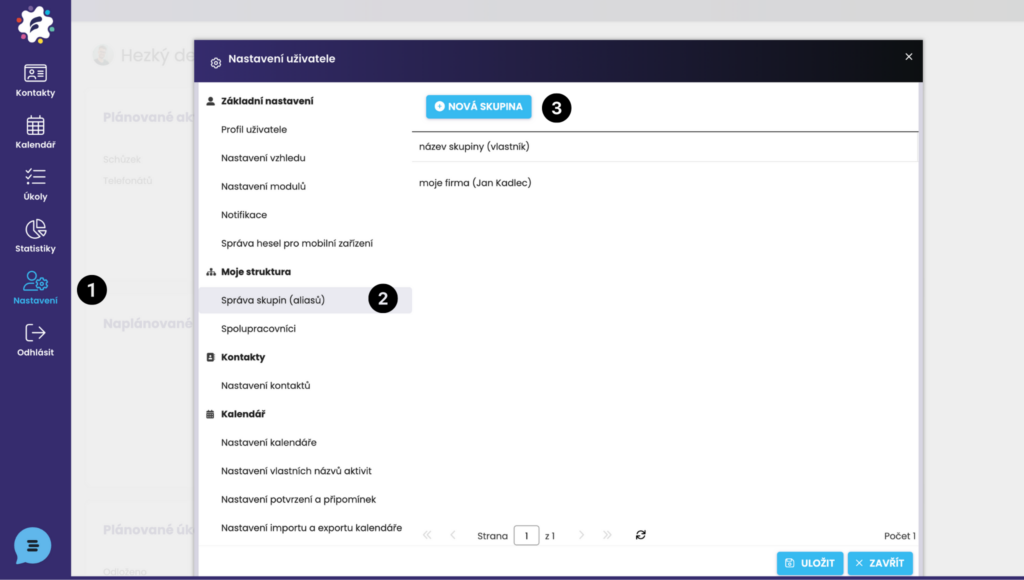
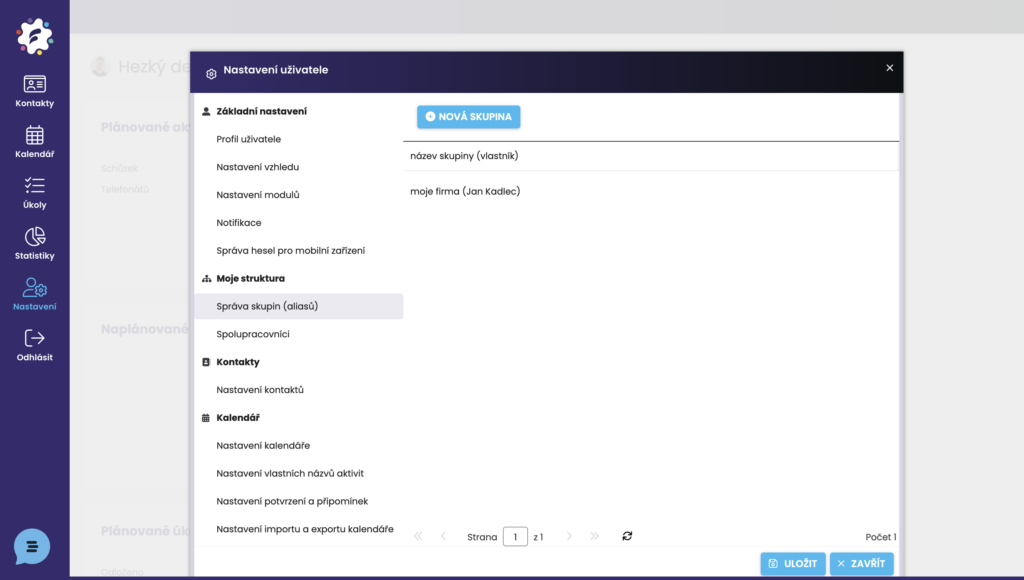
To create an alias, head to Settings (1) and pick the Group management (aliases) tab (2). You'll get a list of aliases you've already created, which you can edit by clicking on them.
To make a new alias, click on “New group” (3).
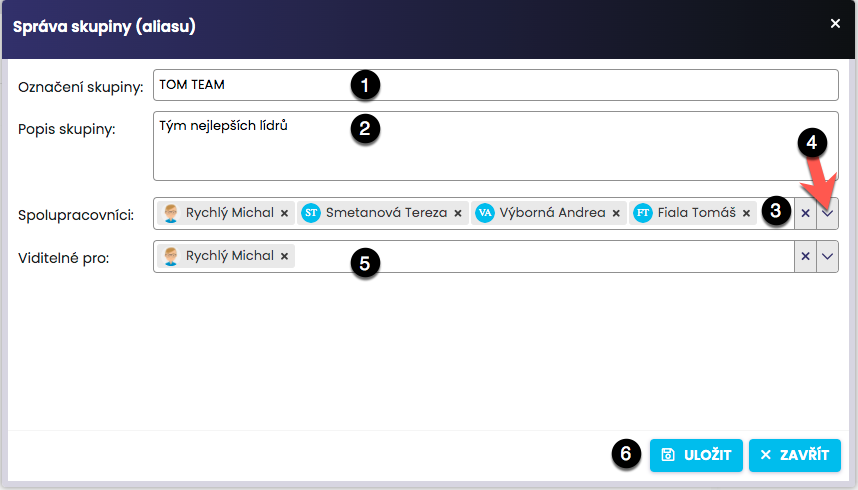
Now you can set up your new alias. Enter the Group name (1) that will be used for this group, and you can also add a Group description (2) if you want.
You can add collaborators directly by typing into the Collaborators field (3), or use the arrow (4) to open the list of collaborators.
You can also decide who can see this group (5), that is, who can assign it to activities.
Confirm your entries by clicking Save (6).
The new alias is saved among the predefined aliases and is ready for you to use when creating activities.
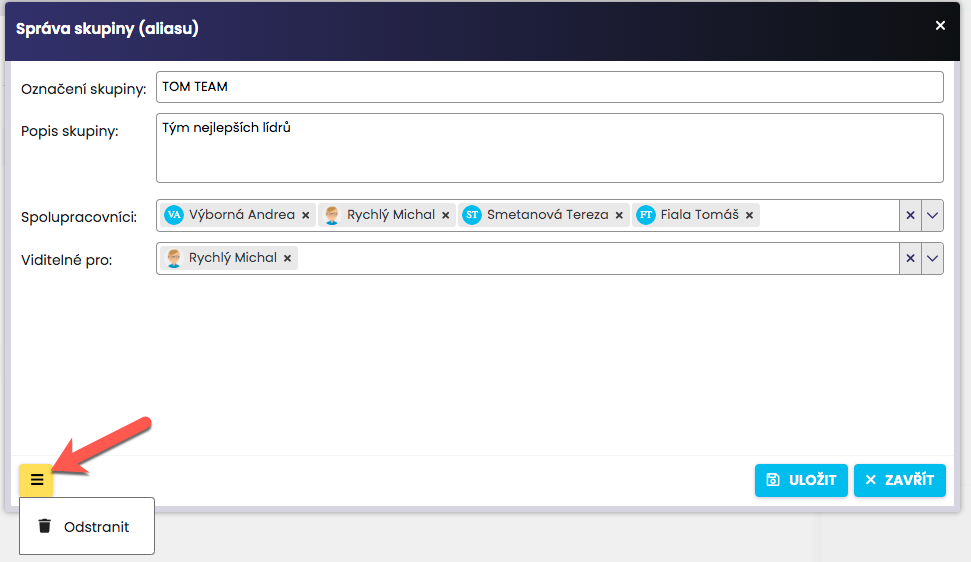
After clicking, you can edit or delete your defined groups anytime (1).