In your database, you can choose which task data you want to display, or rather, see in your overview. For example, whether it’s important for you to see the contact linked to the task, or maybe it’s important for you to display who’s handling the task.
Just scroll and click the gear icon in the top right corner, where a dropdown menu pops up showing all the possible data you can display.
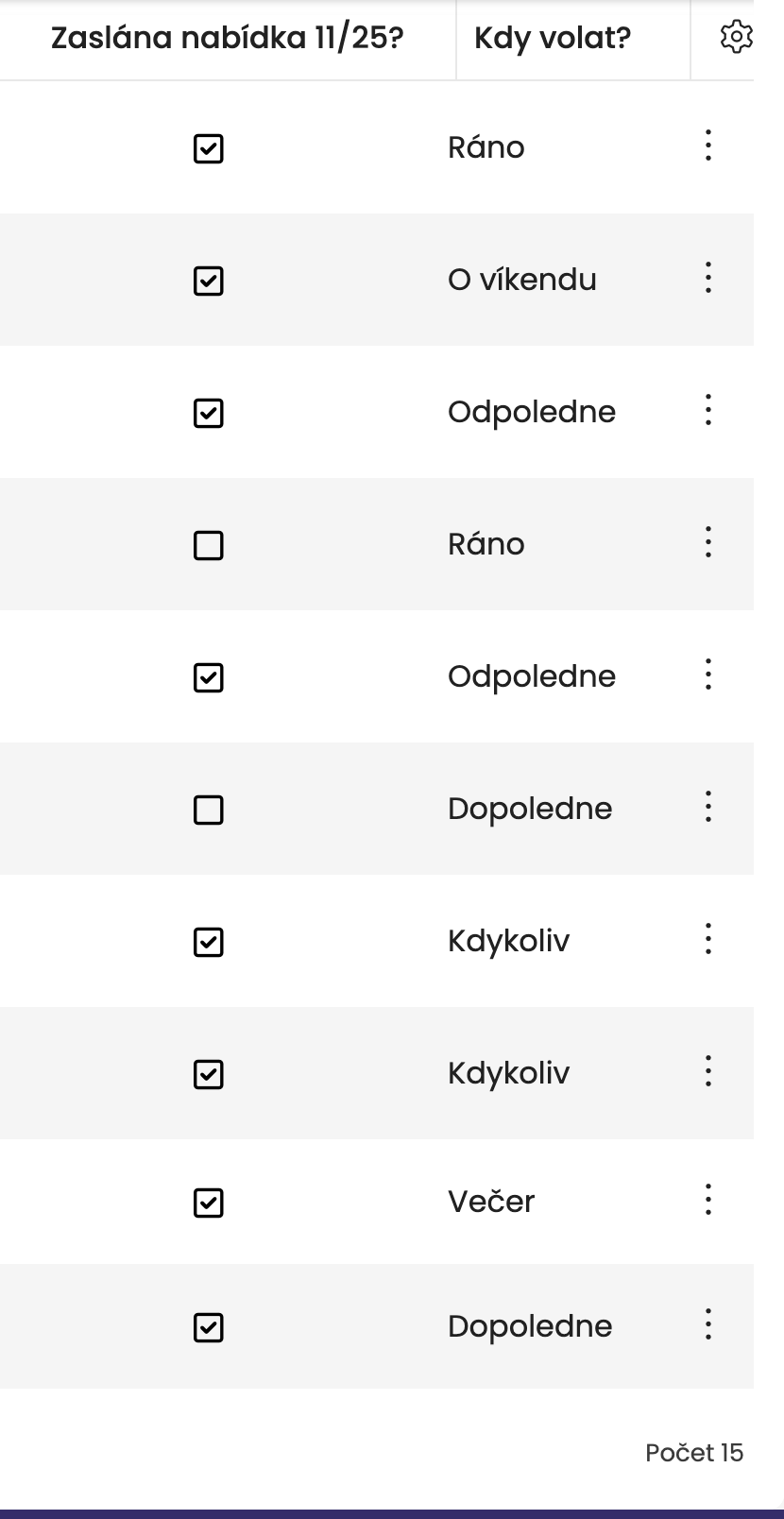
You can also display info that you’ve set up as your own custom fields. Custom fields always show up all the way on the right, next to the gear icon.
Once you create a custom field, it appears in the overview automatically unless you choose otherwise during creation.
You can group (or split) your tasks into different blocks by their status. Just click on the column name “Status/Result”. The first click will show ToDo, the second click will show the other statuses as well.
You can also choose which tasks you want at the top and which ones below (for example, higher priority tasks on top, deadlines sorted up... ).
Just click the name of the column and a small arrow will show up, so you know tasks are sorted by that criteria and whether it's ascending or descending.
You can set up the order of your data columns exactly the way you need. Like seeing the deadline right after the task name? Just “grab” the column name and drag it to the spot where you want it.
You can also pick how wide your columns are. Just click and hold the edge of the column name and drag to stretch it out (make it wider) or pull it in (make it smaller).
