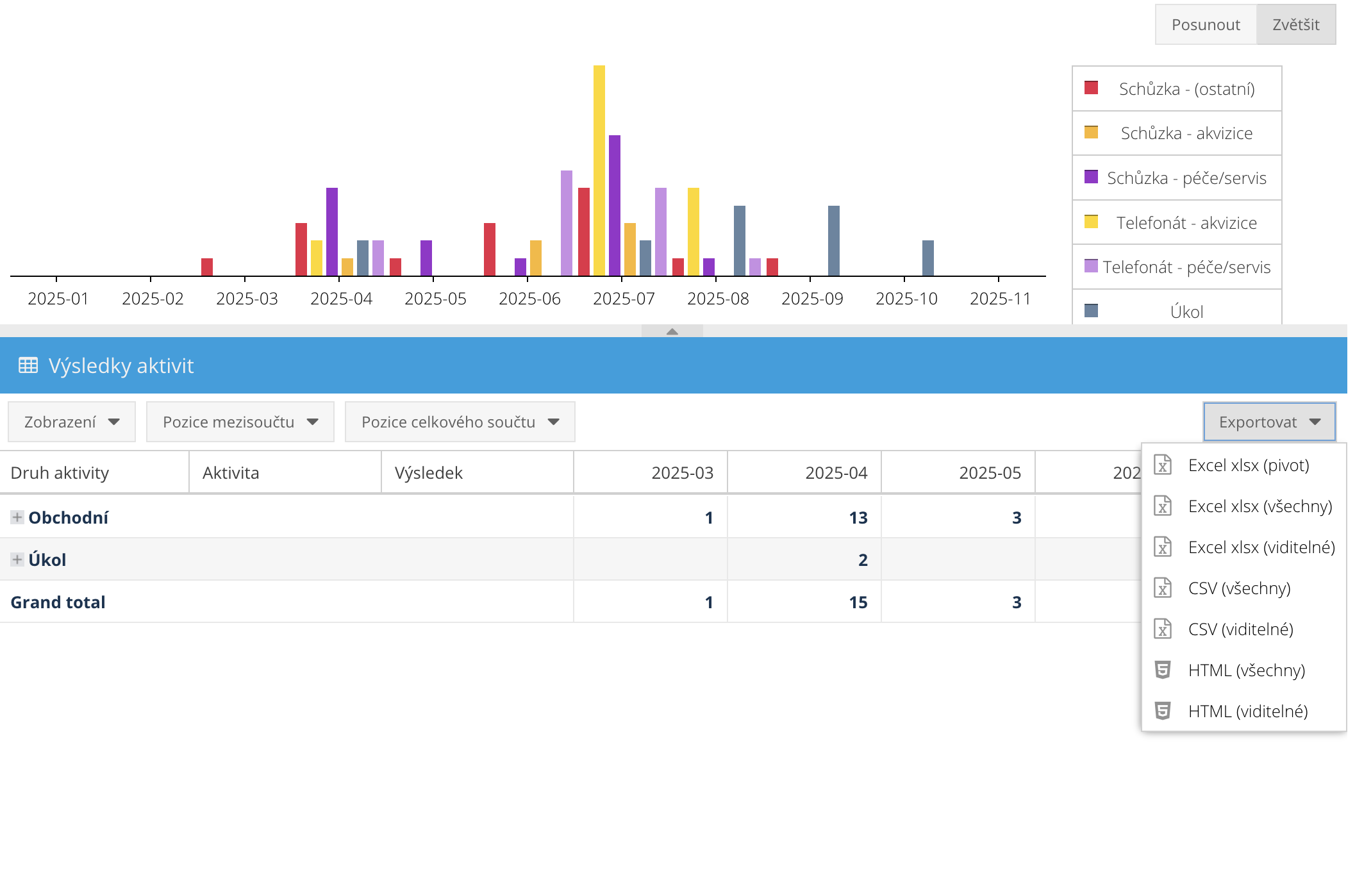
Thanks to entering your clearly defined set of events (meetings, calls, etc.) into the calendar, FreshFlow can evaluate the number of specific activities.
This way, you can easily compare how many acquisition meetings or calls have been done, for the period and people you choose.
Thanks to entering clear results from the set you define for every activity, FreshFlow can uniquely track the success of activities.
You'll clearly see who's doing great and who should step up. Or where most activities — and therefore potential deals with clients — tend to end.
Analyze the performance of individual team members (e.g. sales reps) – both in terms of the number of specific activities completed and the results of those activities.
See who closes deals and who doesn't. Spot weaknesses and strengths in the team and get feedback for everyone on what to focus on.
No need to write endless manual reports from every team member.
Analyze all the filtering options above for stats over your chosen periods – for example quarter, year, month, or your own custom range.
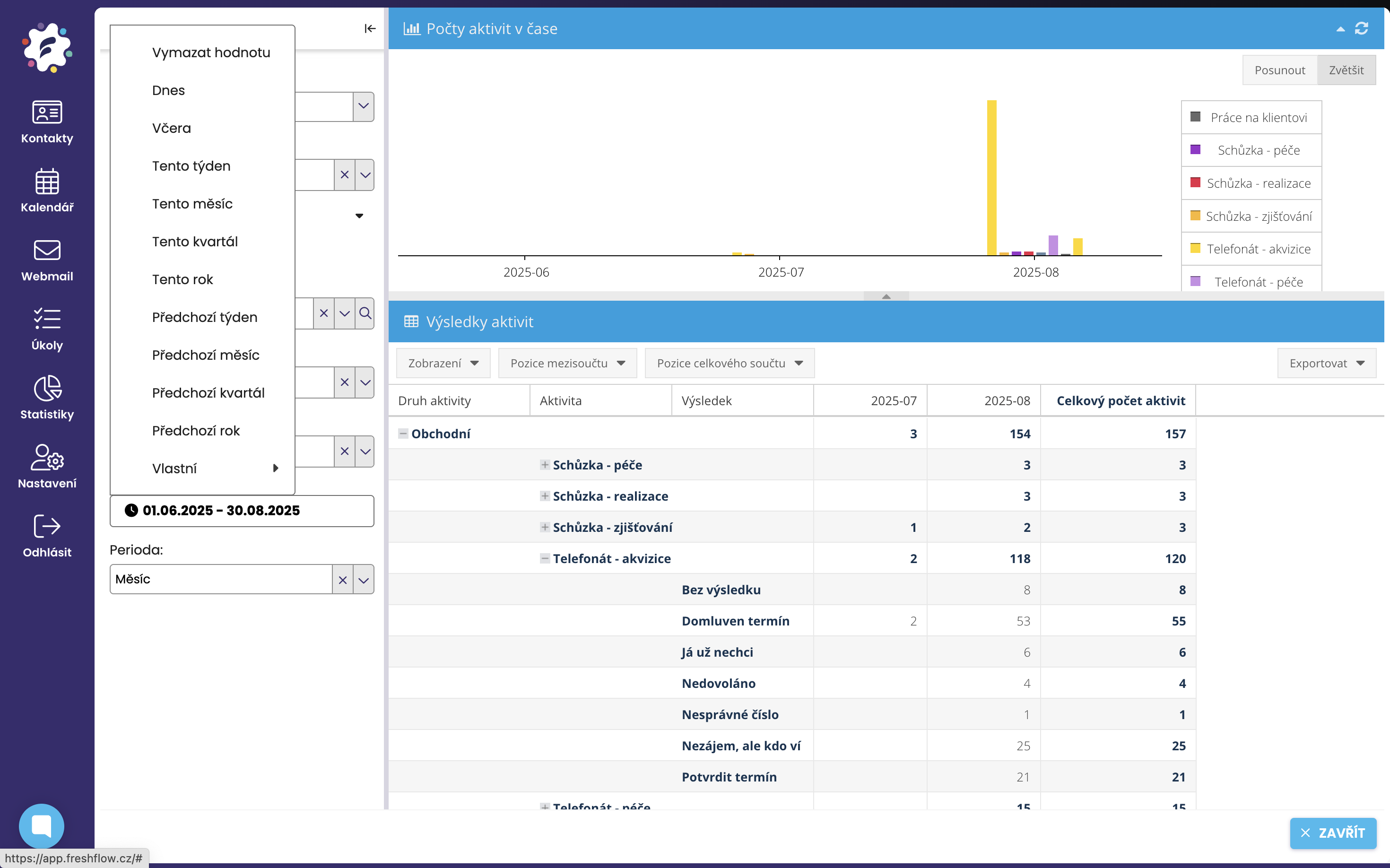
Thanks to FreshFlow statistics, there's a unique way for managers to oversee regular client campaigns (like acquisition or ongoing care campaigns…).
As a manager, you get precise and real-time control over the progress of every campaign – how many activities (meetings, phone calls…) were carried out in the campaign over a certain period, with what results, and how each sales rep is doing.
Sales reps don't have to keep records of their calls and meetings separately and then tediously rewrite and report them – everything is automatically logged and evaluated from their calendars. So they don't need to do anything extra, just plan meetings and calls and write down results in the calendar.
We talk more about client campaigns and how to manage them using statistics from calendars HERE.
You can download the stats you defined (filtered) as an Excel or CSV file and analyze them from there. More about export HERE.