Any activity, whether it's a meeting, call, or task, is automatically added to the contact card.
You can also add other information and documents related to the contact into the contact card – for example, documents or emails.


On the right side of the main page, you'll find the entire history of your relationship with the contact. All meetings, calls, and tasks. You can also see notes, results, and any scheduled follow-up activities.
You can also click into the activity details with one click to display all the details.
All contact details and notes for the contact will be created on the left side. You can edit them by clicking the pencil icon.
On the left side, you can also manage the tags you use to mark and filter the contact. You can either add new ones (+) or pick from the existing ones (dropdown). We cover tags in more detail HERE.
Everyone has their own needs for tracking client information. That’s why you can add any custom field names you want to the contact card in FreshFlow. You can pick from your own set of values, numbers, currency, yes/no checkboxes, or even a longer text.
You can then display data from custom fields in your contact directory (list) and contact details too.
We cover custom fields and how to create them HERE.
Inside the contact card, you'll see all the tasks linked to that contact. You can also create new ones right there and connect them to the given contact automatically by hitting the blue “New Task” or “New Project” button.
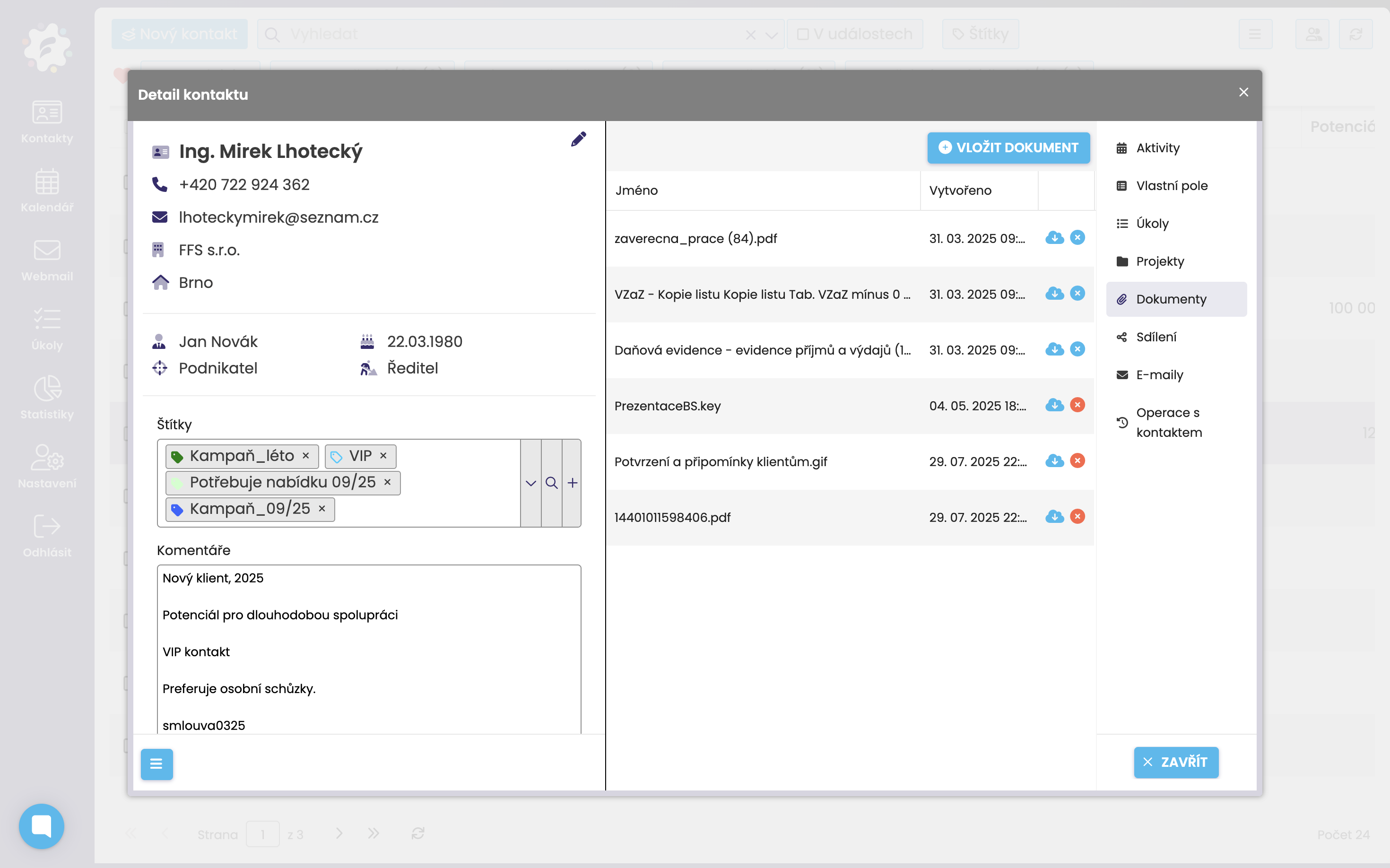
You can upload any document related to the contact in the documents section of the contact card. You can add any format you want – docx, videos, PDFs, Excel, or even photos.
This way, all your documents are neatly saved right where they belong.
You can also attach received and sent emails to the given contact. This makes sure you have a perfect overview of email communication not just for yourself, but for the whole team.
You can set up automatic attaching, which means that any email you get from this contact, or send to this contact, will be automatically saved here.
You can also attach emails manually, or forward them to your special FreshFlow address.
We cover how to connect your email inbox to FreshFlow and how to attach emails to a contact card in this section.
