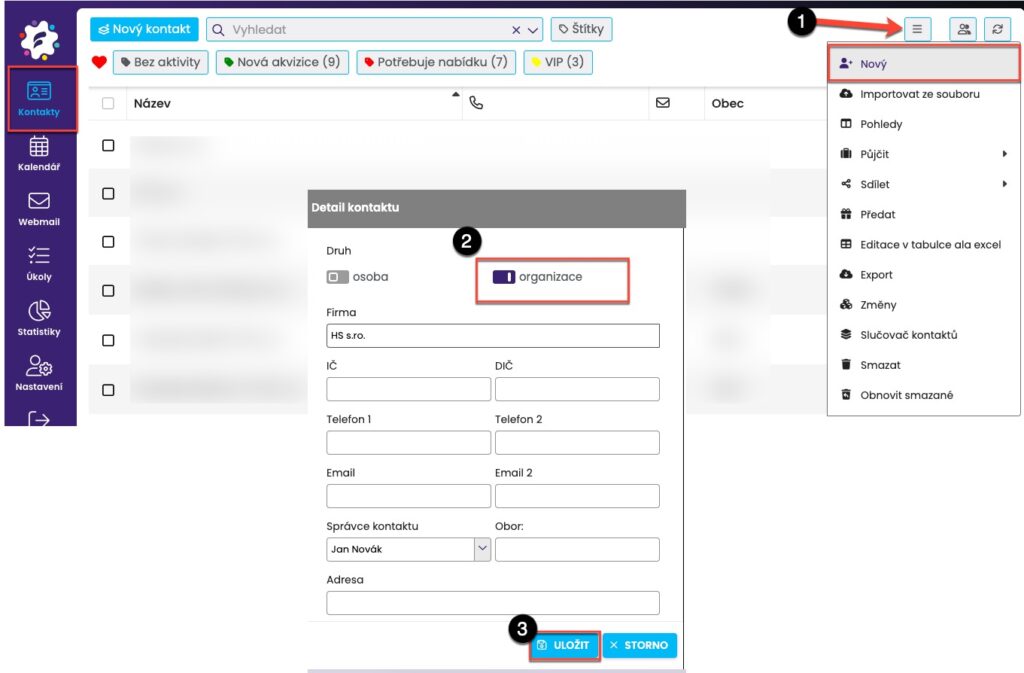
Start by saving the company first. The process is the same as if you want to enter a new contact (1), just check "organization" (2) at the top. After filling out all the details, you save (3).
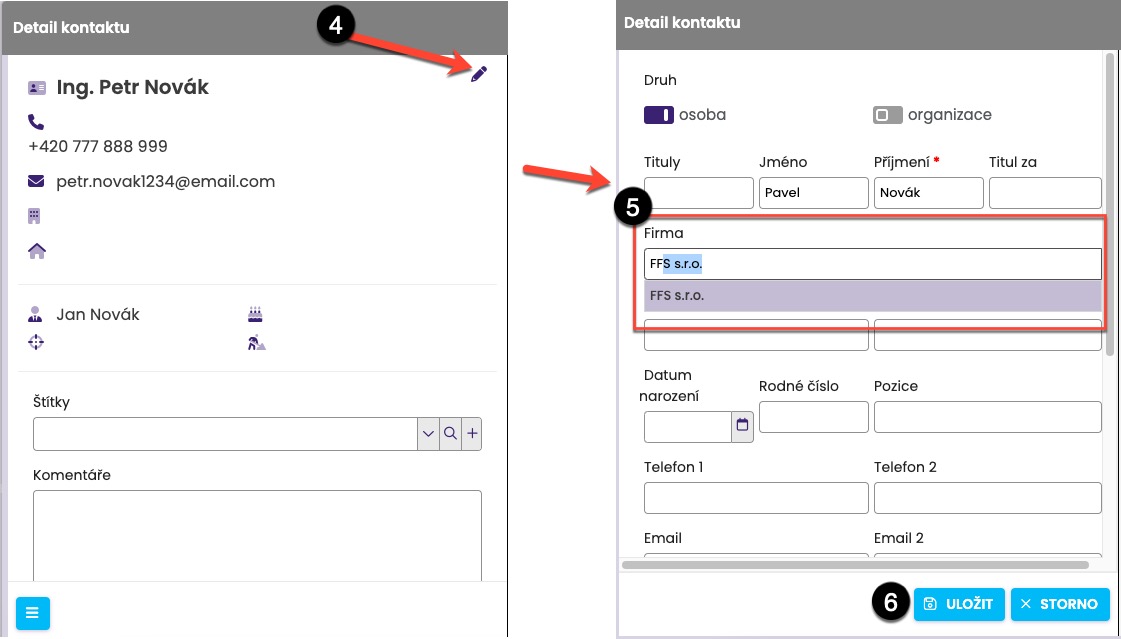
Then you can assign either existing contacts or brand new contacts to the saved company. Just fill out the "Company" field (5) in the contact detail (4). When you start typing the company name, matching saved companies will show up in the dropdown (5). Pick one and save it again (6).
For a company saved like this, all connected people show up in the right column, under the “Connected People” tab (8), when you open the detail (click (7)).
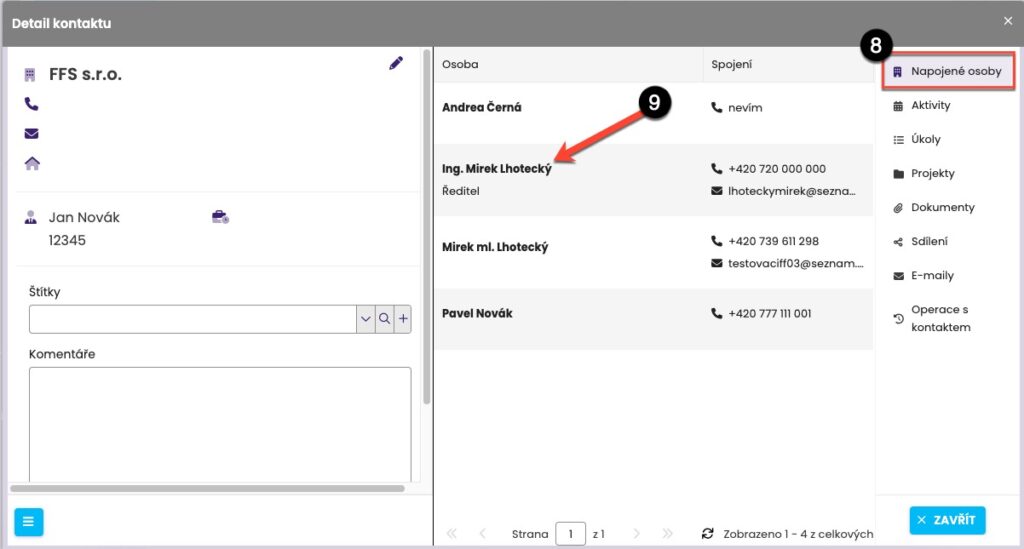
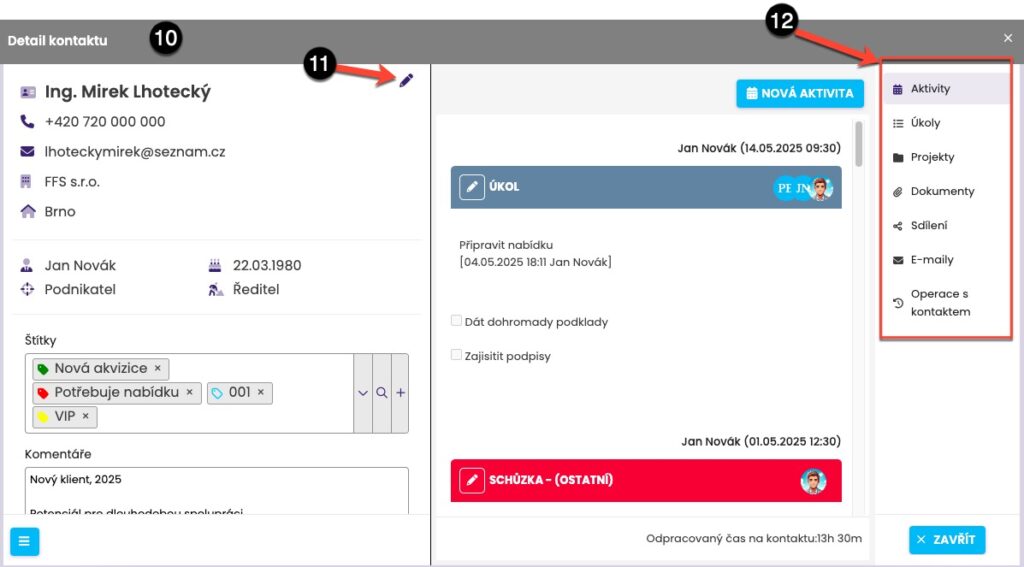
From the list of connected people (8), you can click directly on the contact you want (9) and you'll see the standard contact details (10), where you can edit the contact (11) or go ahead and create activities, tasks, projects, etc. (12).
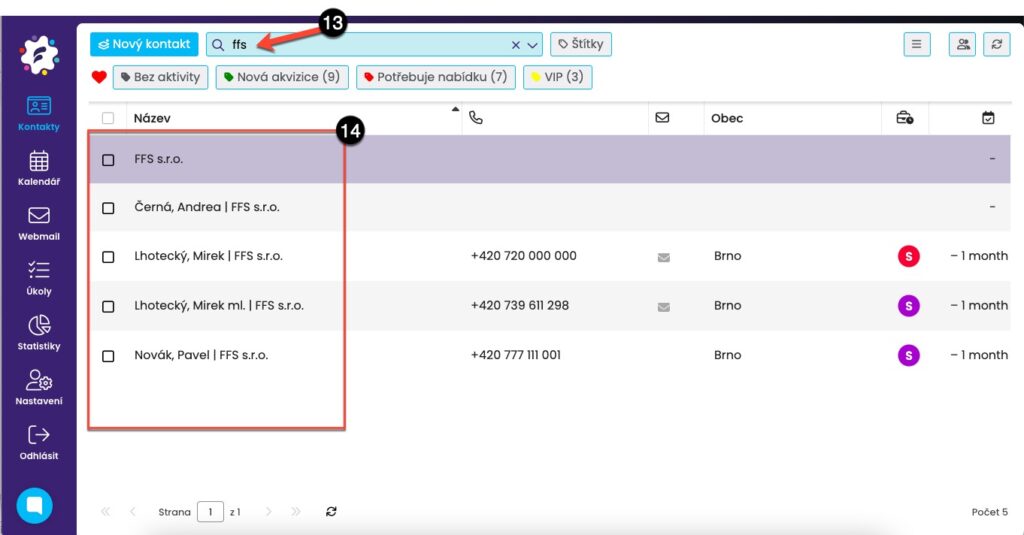
Of course, you can also use full-text search in the contact list by company name. Just enter the name of the company you want (13) and FreshFlow will show you both the saved company and all the contacts that belong to it (14).